Secure Boot is a UEFI (Unified Extensible Firmware Interface) security feature that ensures only trusted software can start on your PC. It validates the digital signatures of OS boot loaders, drivers, and other early‑boot components to block malicious code (e.g., rootkits) from tampering with the startup process.
The primary goal is to harden the boot chain by preventing unauthorized changes. This is especially relevant for modern systems like Windows 11, where Secure Boot and TPM 2.0 are part of the official requirements (although Windows 11 can still be installed and used via certain bypass methods). For Linux and other operating systems, it’s optional but useful, typically implemented via shim‑signed boot loaders.
In online gaming, the feature is also leveraged by some anti‑cheat systems to verify platform integrity and reduce cheating. It’s widely used in enterprise environments and many Linux distributions to protect against untrusted software at boot.
Is Secure Boot present in the BIOS/UEFI of Chinese X99 boards?
In most cases, yes — but not always. Chinese LGA2011‑3 motherboards have been produced since 2019, when this requirement wasn’t as prominent. As a result, not every firmware build includes the necessary functionality. Fortunately, the feature is more common than built‑in TPM 2.0 support. If you need both TPM 2.0 and Secure Boot, expect to spend time hunting for a suitable firmware — especially on rare models or boards built on unconventional chipsets.
This process takes time, and having an SPI programmer is practically essential, since reliable compatibility information is scarce and you may need to proceed by trial and error, with a risk of bricking the board. For popular motherboards, you can save time by purchasing a custom iEngineer BIOS that includes expanded features and support for both Secure Boot and TPM 2.0 modules.
Preparing to configure Secure Boot
Before you configure and enable the feature, disable the Compatibility Support Module (CSM). The settings are located under Advanced → CSM Configuration.
Make sure your OS is installed in UEFI mode, the disk uses GPT (not MBR), and your GPU/VBIOS supports UEFI GOP.
To turn CSM off:
Set UEFI mode for Video, Storage, and Other PCI devices.
Save BIOS settings, reboot, and return to the CSM menu.
Set CSM Support to Disabled.
Save and reboot. If you get a black screen, your graphics card likely lacks UEFI GOP support. Clear CMOS with a jumper or by removing the battery for a few minutes.
If all went well, proceed to configuration.
Where to enable and configure it in BIOS/UEFI
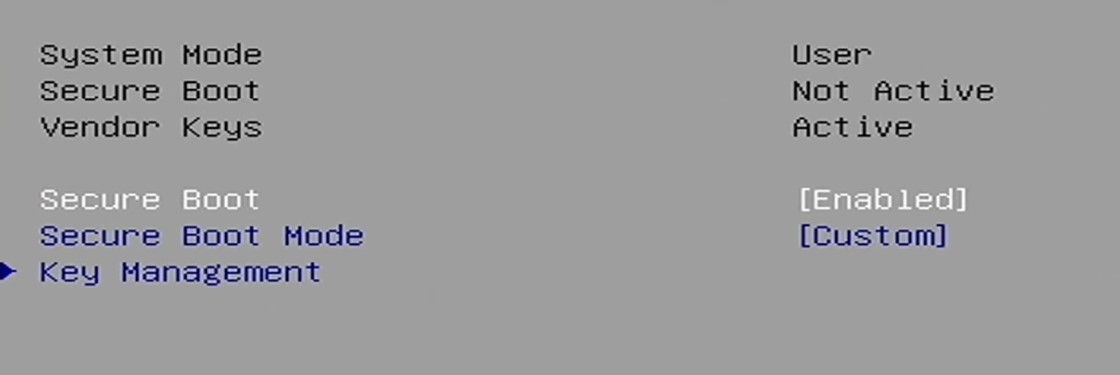
Most Chinese LGA2011‑3 firmware is based on AMI Aptio V and shares a similar structure. The Secure Boot menu is under the Security tab. There you’ll see the current status, options to enable/disable, mode selection, and key management.
If you don’t see this menu, your firmware most likely lacks the necessary support. You can confirm by dumping the BIOS (for example, with Intel FPT or AFUDOS) and opening it in AMIBCP.
BIOS version without Secure Boot and TPM 2.0
BIOS version with support for Secure Boot and TPM 2.0
To enable Secure Boot correctly:
Enter BIOS → Security → Secure Boot menu.
Open Key Management.
Select “Delete all Secure Boot variables” and confirm.
Then choose “Enroll all Factory Default Keys” and confirm. Optionally, you can use “Provision Factory Default Keys” instead. Both actions load and activate the standard key set embedded in the UEFI firmware.
Return to the previous menu and set Secure Boot to Enabled (in some cases a reboot may be required first).
Save, reboot, and open the menu again — you should now see the status as Active.
You’re ready to boot the OS.
Key databases and their role
This mechanism uses a hierarchy of cryptographic keys and databases stored in UEFI NVRAM to validate signatures. The main components are:
Platform Key (PK): The root key that controls the entire policy. Usually installed by the OEM; authorizes other keys. Changing the PK should be done with care, as it can effectively lock the platform.
Key Exchange Key (KEK): Used to securely update the allow/deny databases (db and dbx) without a full reset.
Authorized Signatures (db): The allowlist of certificates and hashes (e.g., Microsoft for Windows, or shim keys for Linux) that permit signed software to boot.
Forbidden Signatures (dbx): The denylist of revoked or compromised signatures/certificates to block known‑bad components.
Authorized Timestamps (dbt): A database for RFC 3161 time‑stamping authority (TSA) signatures. On many Chinese boards this is typically empty (0).
Checking status in Windows
Via PowerShell
Open PowerShell as Administrator (Win+S → type “PowerShell” → right‑click → Run as administrator).
Run: Confirm-SecureBootUEFI
Result:
True: Enabled.
False: Disabled.
Via System Information
Press Win+R, type msinfo32, press Enter.
In System Information, locate Secure Boot State.
On: Active.
Off: Disabled.
If the line is missing, the platform doesn’t support this feature.