Table of Contents
LGA1151 is one of the most upgrade-friendly Intel platforms around: used CPUs are cheap and plentiful, and the socket has more headroom than Intel’s official support lists suggest.
LGA1151 (Socket H4) covers four generations of Intel desktop processors, from 6th-gen Skylake to 9th-gen Coffee Lake Refresh. Besides a straight swap to a faster retail chip, you can run 8th- and 9th-gen CPUs on older boards, use server Xeons, install the GeForce Now CC150, or go all the way to Chinese mobile CPUs on adapters.
This guide covers:
- how the two socket revisions and the chipset decide which CPUs your board can run
- three upgrade levels, from a straight CPU swap to modified mobile CPUs, plus two side routes: Xeon E3 v5/v6 and the Intel CC150
- the pitfalls that catch people after the swap: BIOS, VRM, power limits, cooling and memory
- Windows 11 support and the fastest CPU for each board type
What You Need to Know About LGA1151
Revisions
Unlike most earlier Intel sockets, LGA1151 comes in two versions, unofficially called 1151 v1 and 1151 v2. Both have the same pin count and layout, but they are electrically incompatible (officially, at least; the unofficial side is covered below). 1151 v1 supports 6th- and 7th-gen processors (Skylake and Kaby Lake), while 1151 v2 supports 8th and 9th gen (Coffee Lake and Coffee Lake Refresh).
Chipsets
For desktop boards, Intel released 11 chipsets in the 100 and 200 series (1151 v1) and 8 in the 300 series (1151 v2).
| Chipset | LGA1151 Generation | Segment | CPU Overclocking | Memory Overclocking | BCLK Overclocking | SATA 6G Ports | USB 3.0/3.1 Ports | Max DDR4 (JEDEC) | Max DDR4 (OC) |
|---|---|---|---|---|---|---|---|---|---|
| H110 | v1 (6-7th gen) | Ultra Budget | No | No | No | 4 | 4 | DDR4-2133 | DDR4-2133 |
| H310 | v2 (8-9th gen) | Ultra Budget | No | No | No | 4 | 5 | DDR4-2666 | DDR4-2666 |
| B150 | v1 (6-7th gen) | Budget | No | No | No | 6 | 6 | DDR4-2133 | DDR4-2133 |
| B250 | v1 (6-7th gen) | Budget | No | Limited | No | 6 | 6 | DDR4-2400 | DDR4-2666 |
| B360 | v2 (8-9th gen) | Budget | No | Limited | No | 6 | 6 | DDR4-2666 | DDR4-2933 |
| H170 | v1 (6-7th gen) | Mainstream | No | No | No | 8 | 8 | DDR4-2133 | DDR4-2133 |
| Q150 | v1 (6-7th gen) | Business | No | No | No | 8 | 8 | DDR4-2133 | DDR4-2133 |
| Q170 | v1 (6-7th gen) | Business+ | No | No | No | 8 | 8 | DDR4-2133 | DDR4-2133 |
| Z170 | v1 (6-7th gen) | Enthusiast | Yes | Yes | Yes | 8 | 8 | DDR4-2133 | DDR4-4000+ |
| H270 | v1 (6-7th gen) | Mainstream | No | Limited | No | 8 | 8 | DDR4-2400 | DDR4-2666 |
| Q250 | v1 (6-7th gen) | Business | No | No | No | 8 | 8 | DDR4-2400 | DDR4-2400 |
| B365 | v2 (8-9th gen) | Budget+ | No | Limited | No | 6 | 8 | DDR4-2666 | DDR4-2933 |
| H370 | v2 (8-9th gen) | Mainstream | No | Limited | No | 8 | 8 | DDR4-2666 | DDR4-2933 |
| Q270 | v1 (6-7th gen) | Business+ | No | No | No | 8 | 8 | DDR4-2400 | DDR4-2400 |
| Z270 | v1 (6-7th gen) | Enthusiast | Yes | Yes | Yes | 8 | 8 | DDR4-2400 | DDR4-4200+ |
| Q370 | v2 (8-9th gen) | Business | No | No | No | 8 | 8 | DDR4-2666 | DDR4-2666 |
| Z370 | v2 (8-9th gen) | Enthusiast | Yes | Yes | Yes | 6 | 6 | DDR4-2666 | DDR4-4000+ |
| Z390 | v2 (8-9th gen) | Enthusiast | Yes | Yes | Yes | 6 | 8 | DDR4-2666 | DDR4-4400+ |
The chipset matters: it sets the number of ports and decides whether you can overclock. It is also a rough guide to power delivery, since boards on entry-level chipsets usually come with weak VRMs, and that limits which CPUs they can handle.
Overclocking
Among retail processors, full multiplier overclocking needs both a K-series CPU and a Z-series chipset.
Early in the socket’s life, some boards allowed BCLK overclocking of locked Skylake CPUs, but today that is a curiosity rather than a practical option.
Before You Upgrade
This guide assumes you already have an LGA1151 system, or at least the motherboard. Before buying anything:
- Identify your motherboard model. It decides the fastest CPU you can install.
- Check its chipset to see what the finished system will be capable of.
- Be honest about your skills: some routes involve BIOS modding, pin-mods and a hardware programmer.
- Set a budget. LGA1151 upgrades range from about $20 to a few hundred dollars.
How to Identify Your LGA1151 Motherboard Model
Software Method (Most Reliable)
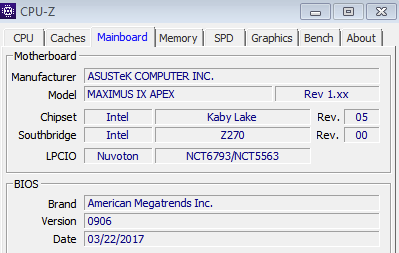
CPU-Z (recommended):
- Download it from cpuid.com
- Launch it and open the “Mainboard” tab
- Read the “Manufacturer” and “Model” fields
Alternatives: AIDA64, Speccy, HWiNFO64.
BIOS/UEFI Method
- Press Del or F2 during boot
- The model is shown on the main screen or under “System Information”
Visual Inspection
The model name is usually printed on the board itself:
- between the RAM slots and the CPU socket
- near the BIOS battery
- around the 24-pin power connector
Level 1 — Supported Processors

Difficulty: Easy
The simplest route is the fastest retail CPU your board officially supports. Nothing clever here, just the most straightforward upgrade.
Look up your board’s CPU support list on the manufacturer’s website, or compare models in our complete LGA1151 CPU list. New 8th- and 9th-gen chips are hard to find these days, so for both socket revisions you’ll mostly be buying used: locally, on eBay or on AliExpress.
At most, you may need a BIOS update first, and it has to be done with your old CPU still installed (see Common Upgrade Pitfalls).
Level 2 — Unsupported but Compatible
Difficulty: Medium–High
Two incompatible versions of one physical socket didn’t sit well with enthusiasts. Since the revisions are physically identical, people started experimenting and found they weren’t as incompatible as Intel claimed. Modifying certain CPU contacts (a pin-mod) and patching the motherboard BIOS lets Coffee Lake and Coffee Lake Refresh processors run on most 100- and 200-series boards, while the board keeps working with Skylake and Kaby Lake. This combination became known as the Coffee Mod. It isn’t a simple process, but once it’s done, Coffee Lake chips run properly, with a few caveats.
The Coffee Mod is especially popular with owners of good Z170 and Z270 boards: with solid power delivery, they handle high-end 8th- and 9th-gen processors without trouble.
We cover the Coffee Mod step by step in a separate guide. In short, it involves:
- backing up the original BIOS
- identifying the revision of your 8th- or 9th-gen CPU, which decides whether you need a pin-mod
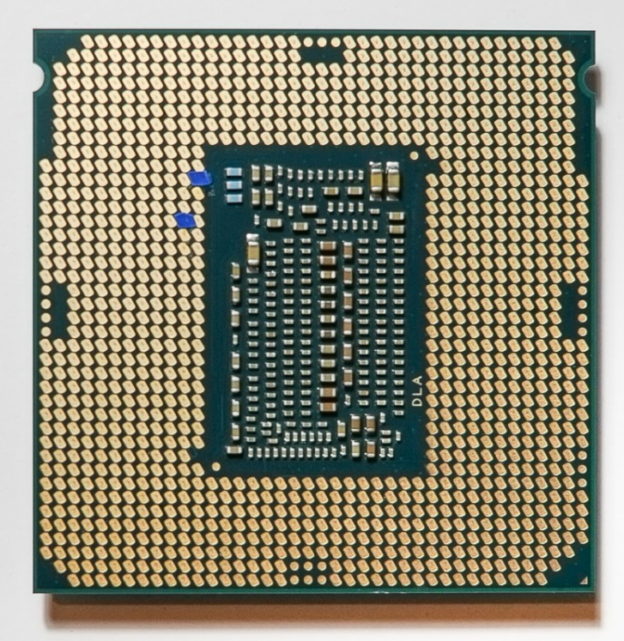
- the pin-mod itself: isolating and/or bridging contacts on the underside of the CPU with Kapton tape, conductive tape or foil, electrical tape, pencil graphite or ordinary tape
- choosing the right BIOS version to modify (depends on the board model and vendor)
- modifying the BIOS, usually with the CoffeeTime utility
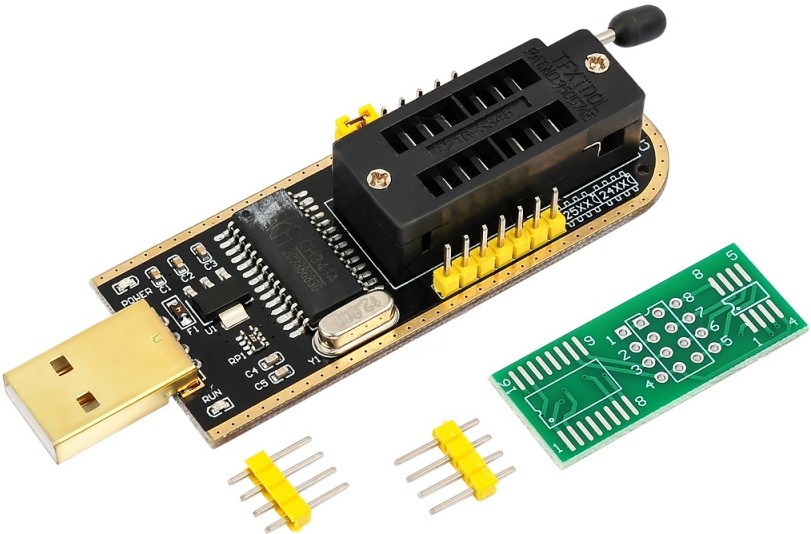
- flashing the modified BIOS, which on some boards requires a programmer
- testing
There are plenty of ways for this to go wrong, so it’s not a good first project for a beginner.


Alternative: Xeon E3 v5 & v6

Difficulty: Medium (BIOS mod only)
If the physical pin-mods of the Coffee Mod put you off, but you still want 8 threads and Core i7-level performance for less money, look at the server Xeon E3-1200 v5/v6 series.
These are essentially Skylake and Kaby Lake Core i7s that Intel locked to workstation chipsets (C232/C236). Enthusiasts have since found a way around that lock on regular consumer boards (H110, B150, Z170 and others).
The key difference from the Coffee Mod is that the CPU itself needs no modification at all: no tape, no graphite, no bridged contacts. It drops straight into the socket, and all you have to do is flash a modified BIOS that removes the software lock.
Not every E3 has Hyper-Threading: the E3-1220 and E3-1225 run 4 threads, so for 8 threads look at models such as the E3-1230, E3-1240 or E3-1270.
Detailed Guide: Running Xeon E3 v5 & v6 on Desktop Boards
Learn which boards are compatible and how to modify your BIOS to save money on your upgrade.
Read the Xeon E3 v5/v6 Guide →
Level 3 — Experimental Options
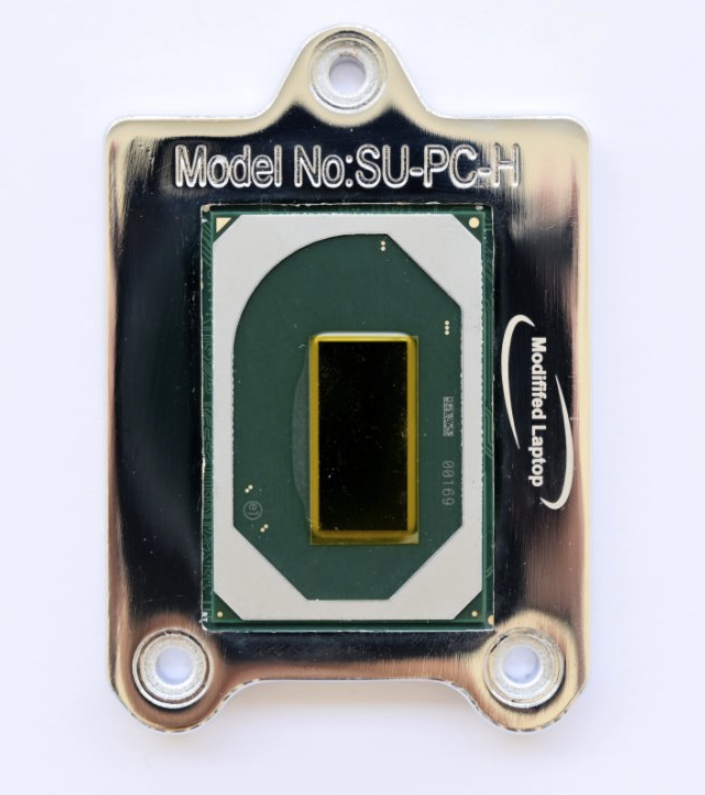
Chinese “Frankenstein” processors
Difficulty: Maximum
Beyond retail CPUs, there is a whole range of unusual Chinese models. The chips themselves were designed for laptops; Chinese engineers mounted them on adapters that fit LGA1151.
They go up to 8 cores and 16 threads and have some tricks of their own: unlocked-multiplier models, for example, can be overclocked on any chipset, even H110. They are fast for the money, but the drawbacks are real: harder installation, worse compatibility than retail CPUs, memory controller issues, and the need to build and flash a modified BIOS.
Even so, they offer one of the best price-to-performance ratios on the platform. We cover them in detail in a separate article.
Alternative: Intel CC150
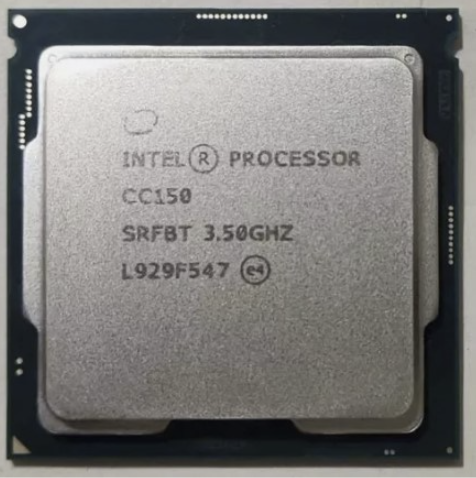
Difficulty: Easy on 1151 v2, Medium–High on 1151 v1 (Coffee Mod)
The Intel CC150 is an LGA1151 v2 processor that Intel built specifically for Nvidia’s GeForce Now cloud gaming servers. It later turned up for sale on AliExpress and other marketplaces.
Intel never sold it officially, but it is a finished product. It works out of the box on 1151 v2 boards and runs on 1151 v1 boards via the Coffee Mod.
Its performance is solid rather than top-tier, and it’s easier on the board’s power delivery than the flagships. More in our full CC150 article.


Common Upgrade Pitfalls
Most problems after an LGA1151 CPU swap come down to the same few causes.
Update the BIOS First
If your board needs a newer BIOS to recognize the new CPU, flash it while the old CPU is still installed. With the new chip in place, an outdated BIOS often won’t POST at all, and you’re left hunting for a second CPU or a programmer. The exception is boards with a USB BIOS Flashback button, which can be updated without any CPU installed.
Weak VRM on Budget Boards
Budget H310 and B360 boards often have 3- or 4-phase VRMs without heatsinks. Put an i7-8700, i7-9700 or i9-9900 on one of them, run a long all-core load (rendering, encoding, compiling), and the VRM will overheat long before the CPU cooler becomes the limit. The board then cuts power and clocks drop close to base, while the CPU temperature looks perfectly normal. The same applies to cheap H110 and B150 boards running Coffee Lake chips via the Coffee Mod.
How to spot and avoid it:
- before buying a 6- or 8-core CPU, look for VRM tests of your specific board model
- watch clocks and package power in HWiNFO64 during a long load: if clocks sag while the CPU temperature is fine, suspect the VRM (some boards also report VRM temperature)
- give the VRM some airflow: a case fan aimed at the socket area or a top-down cooler helps
- set a power limit in the BIOS and accept a small performance loss in exchange for stable clocks
Power Limits and Real Power Draw
Intel’s TDP is measured at base clock. Under turbo, real power draw is much higher, and many boards, especially Z370 and Z390 models, lift Intel’s power limits by default. An i9-9900K rated at 95 W can pull 150–200 W under all-core load on such a board, and that is what your cooler and VRM actually have to handle. You can check and change the limits in the BIOS (PL1/PL2, often labelled “Long Duration” and “Short Duration Power Limit”).
Cooling
The new CPU may need more cooling than your current cooler can provide. Size the cooler for real power draw, not just the TDP on the box, and remember that overclocking pushes both up fast.
Basic cooler selection:
| CPU power | Cooler type | Examples |
|---|---|---|
| Up to 65 W | Stock or 90–120 mm tower | Intel stock cooler (i3/i5), Arctic Freezer 7 X |
| 65–95 W | 120–140 mm tower | Cooler Master Hyper 212, Thermalright Assassin X 120 Refined SE |
| 95 W+, power limits lifted or overclocked | Dual tower or 240–280 mm AIO | Thermalright Peerless Assassin 120 SE, Thermalright Phantom Spirit 120 SE, Noctua NH-D15 G2 |
Check socket support before you buy: some recent coolers ship without LGA115x mounting hardware. The Arctic Freezer 36, for example, needs a separately sold LGA1200/115x kit.
Memory Speed on Non-Z Boards
On anything other than a Z-series chipset, memory runs no faster than the CPU’s official spec: DDR4-2133 for 6th gen, DDR4-2400 for 7th gen, and DDR4-2400 or 2666 for 8th and 9th gen, depending on the model. A faster XMP kit will still work, just at that speed. Many entry-level boards also limit memory timing control.
When LGA1151 Upgrades Aren’t Worth It
Sometimes an LGA1151 upgrade doesn’t make sense, financially or technically, and a newer platform gives you more for similar money:
- Your board is a bare-bones entry-level model. A powerful CPU on a weak board is a poor match, and some of these boards can’t even adjust memory timings. If the upgrade means buying both a new board and a new CPU, you’re effectively building from scratch, so look at a newer platform instead.
- You already have one of the top CPUs. With a Z370 board and a Core i7-8700K, for example, a faster chip still helps, but selling the system and moving to a newer socket gives a much bigger jump.
- You need modern ports and interfaces. LGA1151 is limited to PCIe 3.0 for graphics cards and SSDs and has fewer modern ports than newer platforms.
Interactive Quiz: Which CPU Fits Your Board?
A short quiz that suggests a processor based on your motherboard and technical skills.
FAQ
Does Windows 11 support LGA1151 processors?
Officially, only 8th- and 9th-gen CPUs (Coffee Lake and Coffee Lake Refresh), which means 1151 v2 systems. 6th- and 7th-gen chips (Skylake and Kaby Lake) are not on Microsoft’s supported CPU list.
The other requirements are easy to meet: almost every LGA1151 board has Intel PTT, a firmware TPM 2.0 that you enable in the BIOS, and supports UEFI boot with Secure Boot (the system drive must use GPT).
Windows 11 can still be installed on 6th- and 7th-gen CPUs by bypassing the hardware check (Rufus can do this when it writes the USB drive), and it runs fine. It remains an unsupported configuration, though: Microsoft doesn’t guarantee updates for it and shows a “System requirements not met” notice.
Will Windows 11 work after the Coffee Mod or with a Xeon E3?
After the Coffee Mod, the CPU check passes, because the processor itself is 8th or 9th gen. Whether PTT still works depends on the modified BIOS; if it doesn’t, a discrete TPM module is an option on boards with a TPM header. Xeon E3 v5/v6 chips are Skylake and Kaby Lake, so they are in the same unsupported group as 6th- and 7th-gen Core CPUs.
What is the fastest CPU for an LGA1151 v1 board?
Officially, the Core i7-7700K (4 cores/8 threads, up to 4.5 GHz). With only a BIOS mod, the Xeon E3-1270 v6 and E3-1280 v6 give similar 4-core/8-thread performance, but with a locked multiplier. With the Coffee Mod, a strong Z170 or Z270 board can run 8-core chips up to the i9-9900K.
What is the fastest CPU for an LGA1151 v2 board?
The i9-9900KS (8 cores/16 threads, 5.0 GHz on all cores, 127 W TDP), followed by the far more common i9-9900K/KF. Both belong on a good Z390 or Z370 board. On H310 and B360 boards, the sensible ceiling is an i7-9700 or i9-9900 with Intel’s power limits in place (see Common Upgrade Pitfalls). All models are in our complete LGA1151 CPU list.

Written by
Senior Hardware Specialist proving you don't need top-tier gear to game. Expert in smart upgrades and budget-friendly PC restoration.