AFUDOS is AMI’s utility for flashing and managing BIOS/UEFI firmware. Compatible with AMIBIOS8, Aptio 3, 4, 4.5, and 5.
In addition to the DOS version, there are also AFUWIN (for Windows) and AFUEFIx64 (for UEFI Shell), but this article covers AFUDOS only.
Table of Contents
Features
AFUDOS can flash the main BIOS image and work with individual SPI flash regions such as the Boot Block and NVRAM. With an open Flash Descriptor, Intel service regions become accessible (ME, GbE, and the Descriptor itself). The utility can make a full dump of the current BIOS for backup and later restoration, check an image for compatibility and matching ROM ID, handle capsule files in some cases, start in recovery mode, and, during an update, optionally preserve user settings and SMBIOS tables, perform a silent update, and automatically reboot the system. Note that hardware protections (BIOS Lock, Secure Flash, a closed Flash Descriptor) can block writes and are not bypassed by the utility itself.
⚠️ Critical Safety Warning
AFUDOS carries serious risks. Mistakes can brick your motherboard permanently. The process can erase unique data including serial numbers, MAC addresses, and other identifiers.
Power interruptions or crashes during flashing will corrupt the SPI flash, requiring a hardware programmer for recovery. Always create backups and store them securely!
Disclaimer: We accept no responsibility for any consequences resulting from AFUDOS usage. You perform all operations at your own risk.
Create a bootable USB drive with AFUDOS
Method 1: Rufus + FreeDOS

- Download Rufus
- Insert a USB flash drive
- In Rufus select:
- Partition scheme: MBR
- File system: FAT32
- Boot selection: FreeDOS
- Click “Start” and wait for completion
- Copy
AFUDOS.EXEand your BIOS files to the USB drive
Method 2: HP USB Disk Storage Format Tool
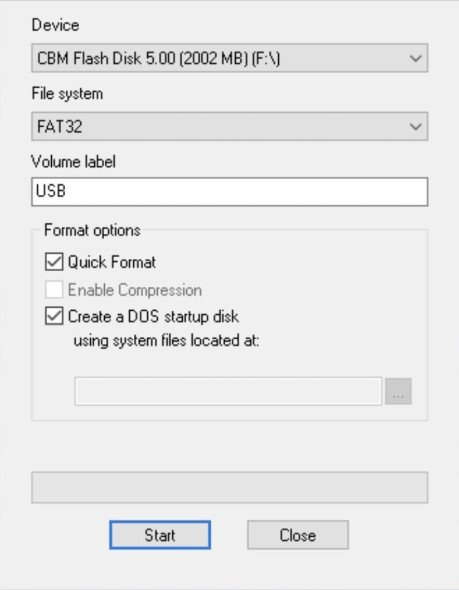
- Download HP USB Disk Storage Format Tool
- Run the tool as Administrator
- Select your USB flash drive
- File system: FAT32
- Check “Create a DOS startup disk”
- Specify the path to DOS system files (you can download them separately)
- Click “Start” and wait for completion
- Copy
AFUDOS.EXEto the root of the USB drive
Booting from the USB drive
There are two ways to boot from the USB drive. We recommend starting with the first method — it’s much simpler and does not change your system’s persistent BIOS settings.
Method 1: Via Boot Menu (Recommended)
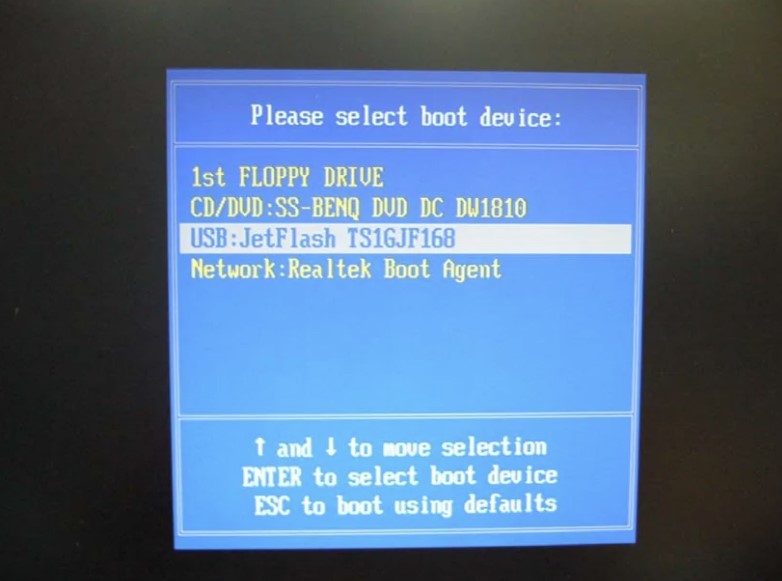
This menu lets you choose which device to boot from one time without changing persistent BIOS settings.
- Insert the USB drive and reboot the computer.
- Right after power-on, but before the Windows logo appears, start pressing the Boot Menu key.
- Common keys: F12, F11, F9, F8, Esc.
- There’s often an on-screen hint at startup, e.g.,
Press F12 for Boot Menu.
- From the list, select your USB drive (it may appear under the manufacturer’s name, e.g., “Kingston DataTraveler,” or simply “USB-Flash Drive”).
- DOS should start.
Method 2: Change boot priority in BIOS (Alternative)

Use this method if you can’t open the Boot Menu or your board doesn’t have it.
- Insert the USB drive and reboot the computer.
- Enter BIOS during power-on by pressing Del, F2, or another key indicated on the startup screen.
- Find the “Boot” section.
- Locate “Boot Priority” and set your USB drive as the first device (“1st Boot Device”).
- Go to the “Exit” section, choose “Save Changes and Exit”, and confirm.
Important: After you’re done, don’t forget to return to BIOS and set your primary disk (SSD/HDD) back to the first boot priority.
After successfully booting into DOS you’ll see a command prompt, e.g., C:>. You can now check compatibility by typing: AFUDOS /S
Basic commands
- Show system info:
AFUDOS /S - Back up current BIOS:
AFUDOS BACKUP.ROM /O - Verify a file without flashing:
AFUDOS NEW.ROM /D - Standard flash:
AFUDOS NEW.ROM /P /B /N - Force (only if you’re sure it’s compatible):
AFUDOS NEW.ROM /P /B /N /X - Restore from backup:
AFUDOS BACKUP.ROM /RECOVERY
Note: After a successful flash, reboot and perform “Load Optimized Defaults”.
Full command list
Info/verification
/S— show current system ROM ID/U— show ROM ID from file/D— verify file without flashing/O— save current UEFI to file
Flashing regions
/P— flash main block (Main BIOS)/B— flash Boot Block/N— flash NVRAM (variables)/E— flash Embedded Controller (if present)/K— flash all non-critical blocks/L— flash all ROM Holes
Intel Flash regions
/ME— flash Intel ME region/MEUF— flash ME Ignition Firmware/FDR— flash Flash Descriptor Region/GBER— flash GbE (LAN controller)
Behavior and checks
/X— ignore ROM ID check (force, dangerous)/CAPSULE— work with capsule image (if supported)/CAF— cancel update if the file is identical to current/Q— quiet (silent) mode/REBOOT— reboot after flashing/SHUTDOWN— power off after flashing/JBC— ignore battery/power checks on laptops
Preserving data
/SP— preserve Setup settings (System Profile)/R— preserve SMBIOS structures
Maintenance/misc
/CLNEVNLOG— clear UEFI event log/A— operations with OEM Activation Key/OAD— delete OEM Activation Key
Basic scenario 1: BIOS dump (backup)
- Boot from the prepared USB drive
- Verify the system is detected:
AFUDOS /S - Save a full backup of the current BIOS from SPI flash:
AFUDOS BACKUP.ROM /O - Make sure
BACKUP.ROMhas the correct size for your chip (typically 8 MB, 16 MB, or 32 MB). - Copy
BACKUP.ROMto separate storage/cloud and keep it safe.
Basic scenario 2: Flashing the BIOS
- Copy the firmware file to the USB root alongside AFUDOS and rename it for convenience, e.g.,
NEW.ROM. - Verify the file without flashing:
AFUDOS NEW.ROM /D - Compare the ROM ID of the file and the system:
AFUDOS /S - Perform a standard flash of the main regions:
AFUDOS NEW.ROM /P /B /N - If you are certain the file matches but see a ROM ID error, use force at your own risk:
AFUDOS NEW.ROM /P /B /N /X - After success, reboot, enter BIOS, perform “Load Optimized Defaults”, save, and reconfigure your settings.
Common errors
- 0x04 ROM ID not compatible — the utility thinks the file isn’t for this board. Use the correct image, or the
/Xswitch only if you’re sure. - 0x34/0x35 Wrong AFU version — use a version compatible with your BIOS.
- 0x40 BIOS write-protected — writing is blocked. Check BIOS Lock or other protections in settings.
- ME/FD errors — Flash Descriptor is locked and/or a Secure Flash policy is enforced. You need to unlock FD and/or use a specialized tool (Intel FPT) or a hardware programmer.
Download AFUDOS
⚠️ Disclaimer
These tools are proprietary software owned by their respective copyright holders.
They are not officially distributed to end-users and are provided here strictly for educational and research purposes only.
Use them entirely at your own risk. Neither the website nor the uploader assumes any responsibility for potential damage, misuse, or legal consequences.
📦 Note: Due to hosting and licensing limitations, all software files are shared via Telegram channel.
Join to access the complete collection of tools and updates in one place.
