
Table of Contents
What is Intel FPT?
Intel Flash Programming Tool (FPT) is an official Intel utility for motherboard firmware management. This tool allows users to create BIOS backups and flash new firmware versions without requiring external programmers.
FPT provides software access to SPI flash memory via the motherboard chipset, making it much easier to update and recover the BIOS.
⚠️ Critical Safety Warning
Intel FPT carries serious risks. Any mistake can permanently brick your motherboard. The process erases unique data including serial numbers, MAC addresses, and other identifiers.
Power interruptions or crashes during flashing will corrupt the SPI flash, requiring a hardware programmer for recovery. Always create backups and store them securely!
Disclaimer: We accept no responsibility for any consequences resulting from FPT usage. You perform all operations at your own risk.
Capabilities and Applications
Primary Functions
- Backup Creation: Complete flash memory backups
- Firmware Flashing: Writing new BIOS versions
- Region Management: Selective flashing of specific areas (BIOS, ME, GbE)
- Diagnostics: Flash memory and protection status verification
Downloading Intel FPT
Intel Flash Programming Tool, along with other utilities, is included in the Intel (CS)ME System Tools package.
Besides FPT, the toolkit includes:
- MEInfo (displays ME version and protection status)
- MEManuf (ME functionality verification)
- FWUpdate (local ME region updates only)
- FIT (Flash Image Tool) (firmware image editing and building)
⚠️ Disclaimer
These tools are proprietary software and belong to their respective owners.
They are not officially distributed to end-users and are provided here strictly for educational and research purposes only.
Use them entirely at your own risk. The website and the author accept no liability for any potential damage, misuse, or legal consequences.📦 Note: Due to hosting and licensing limitations, all software files are shared via Telegram channel.
Join to access the complete collection of tools and updates in one place.

After downloading, extract the archive, select the appropriate FPT version, and copy it to a dedicated folder like C:\FPT for convenient access.
Version Selection
Intel Flash Programming Tool is available in several versions:
| Version | Purpose | Recommendations |
|---|---|---|
| fpt.exe | DOS/Legacy | For older systems and bootable disks |
| fptw.exe | Windows x32 | For legacy 32-bit systems |
| fptw64.exe | Windows x64 | Modern 64-bit systems |
Determining ME Version
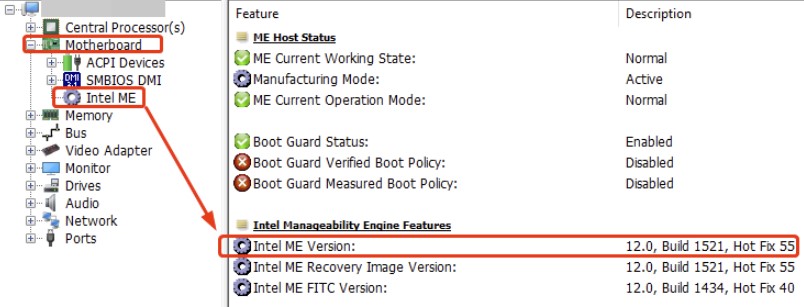
Before choosing the right FPT version, you need to find out your motherboard’s Intel ME version. Use the MEInfo utility (included with ME System Tools) or HWiNFO:
# MEInfo command example
MEInfoWin64.exe -fwsts
# Look for the FW Version line in the output
Alternative: Open HWiNFO → Motherboard → Intel ME → ME Version.
Choosing a Compatible FPT Version
Your Intel ME version determines which Intel ME System Tools package and FPT version are compatible with your chipset. Match your ME version with the table below and use the corresponding toolkit.
| ME Version | Platform Generation / PCH | Typical Chipsets | ME System Tools Version | FPT Version |
|---|---|---|---|---|
| ME 2.x | Early Core 2 Duo | Q965, Q963, 945GM | ME System Tools v2.x | FPT v2.x |
| ME 3.x | Later Core 2 Duo | Q35, Q33, G33 | ME System Tools v3.x | FPT v3.x |
| ME 4.x | Late Core 2 Duo | Q45, G45 | ME System Tools v4.x | FPT v4.x |
| ME 5.x | Last Core 2 Duo era | P35, P45, G41 | ME System Tools v5.x | FPT v5.x |
| ME 6.x | 1st Gen Core i (Nehalem) | P55, H55 | ME System Tools v6.x | FPT v6.x |
| ME 7.x | Sandy Bridge (2nd Gen Core i) | H61, Z68 | ME System Tools v7.x | FPT v7.x |
| ME 8.x | Ivy Bridge (3rd Gen Core i) | Z77, B75 | ME System Tools v8.x | FPT v8.x |
| ME 9.x | Haswell / X99 | Z87, Z97, X99 | ME System Tools v9.x | FPT v9.x |
| ME 10.x | Haswell Refresh | Q87, Z97 | ME System Tools v10.x | FPT v10.x |
| ME 11.x | Skylake / Kaby Lake | Z170, Z270 | ME System Tools v11.x | FPT v11.x |
| ME 12.x | Coffee Lake | Z370, Z390 | ME System Tools v12.x | FPT v12.x |
| ME 14.x | Tiger Lake / Embedded | OEM | OEM | ME System Tools v14.x | FPT v14.x |
| ME 15.x | Comet Lake / Rocket Lake | Z490, Z590 | ME System Tools v15.x | FPT v15.x |
| ME 16.x | Alder Lake / Raptor Lake | Z690, Z790 | ME System Tools v16.x | FPT v16.x |
Preliminary Diagnostics
Mandatory checks before beginning work:
# Check compatibility and SPI availability
fptw64 -i

# Check protection status
fptw64 -status

# Test read (verify flash size)
fptw64 -d test.bin
Common status interpretations:
- ✅ SPI Unlocked / Flash Not Protected — unrestricted flashing possible
- ⚠️ Protected Ranges Active — requires
-rewriteparameter - ⚠️ Flash Descriptor Locked — limited access to some regions
- ❌ BIOS Guard Active — BIOS write protection enabled
- ❌ SPI Access Denied — software flashing impossible
On some OEM laptops and branded motherboards, SPI may be completely blocked. In such cases, external programmer hardware is required for flashing.
Safety Measures Before Flashing
Before beginning:
- Create complete backup:
fptw64 -d backup_YYYYMMDD.bin - Verify file size (should be 8–32 MB depending on motherboard)
- Copy backup to separate storage or cloud
- Record motherboard information (model, serial number)
During flashing:
- DO NOT power off the computer
- DO NOT run other programs
- Ensure stable power supply (UPS recommended)
- Wait for the process to complete


After flashing:
- We recommend performing a factory reset
- Verify system boot and key functionality
Practical Scenarios
Scenario 1: Creating Backup
Preparation:
- Open Windows Command Prompt as administrator
- Navigate to FPT folder:
cd C:\FPT
Creating backup:
# Check SPI
fptw64 -i
# Full backup
fptw64 -d original_backup.bin
# Verify file
dir original_backup.bin
Storage:
- Copy backup to external media
- Verify file size
Scenario 2: BIOS Flashing
Preparation:
# Check SPI status
fptw64 -i
Flashing process:
# Standard flashing
fptw64 -f new_firmware.bin

# Flash with verification
fptw64 -f new_firmware.bin -verify

# If access errors occur
fptw64 -f new_firmware.bin -rewrite

# Flash BIOS region only
fptw64 -f new_firmware.bin -bios
After flashing:
- Wait for completion
- Restart system
- Verify BIOS
Advanced Usage
Region Extraction
# BIOS region
fptw64 -d bios_backup.bin -bios

# ME region
fptw64 -d me_backup.bin -me

# GbE region
fptw64 -d gbe_backup.bin -gbe
Region Flashing
# BIOS only
fptw64 -f bios_only.bin -bios

# ME only
fptw64 -f me_region.bin -me

# GbE only
fptw64 -f gbe_region.bin -gbe
Common Errors and Solutions
Error 25: The host CPU does not have read access to the target flash area
This error indicates that the CPU is blocked from reading the flash memory region due to security restrictions, such as locked Flash Descriptor (FD) settings or Protected Range Registers (PRR) enforced by the BIOS or Intel Management Engine (ME).
Fix: Check BIOS settings for options to disable read protections or BIOS Lock, if available. Use UEFITool to modify the BIOS firmware and adjust FD or PRR settings to allow read access. Alternatively, employ an SPI programmer (e.g., CH341A) to directly read the flash chip, bypassing software restrictions.
Error 26: The host CPU does not have write access to the target flash area
This error occurs when the CPU is prevented from writing to the flash memory, typically due to BIOS Lock, PRR, or FD settings protecting critical areas like the BIOS or ME regions.
Fix: Look for BIOS settings to disable write protections or BIOS Lock, if accessible. Modify the BIOS firmware with UEFITool to remove restrictions in the FD or PRR. If software methods fail, use an SPI programmer to directly write to the flash chip.
Error 103: There are no supported SPI flash devices installed
This error is different from the ones above — it’s not a protection or permissions issue. FPT simply doesn’t recognize the SPI flash chip your board uses. This is common on Chinese X99 boards, where manufacturers have switched to budget flash chips (XMC, GallopMem, Fudan, and similar brands) that aren’t listed in FPT’s bundled parts database.
Fix: This one has a dedicated, tested fix involving a one-line edit to FPT’s fparts.txt — see our full guide: Fixing Intel FPT “Error 103: No Supported SPI Flash Device”.
Error 167: BIOS has enabled Protected Range Registers
This error means the BIOS has configured Protected Range Registers (PRR) to block FPT from accessing the flash memory, protecting regions like the BIOS or ME from unauthorized changes.
Fix: Check BIOS settings to disable PRR or BIOS Lock if the options are available. Use UEFITool to edit the BIOS firmware and disable PRR or related protections. If blocked, use an SPI programmer to flash the modified firmware directly.
Error 280: Failed to disable write protection for the BIOS region
This error indicates that FPT cannot disable write protection on the BIOS region, typically due to locked FD settings or Intel ME restrictions set by the manufacturer.
Fix: Verify BIOS settings for options to disable write protection or BIOS Lock. Use UEFITool to modify the BIOS firmware and unlock FD or PRR settings. If software approaches are unsuccessful, use an SPI programmer to flash the chip directly.