Table of Contents
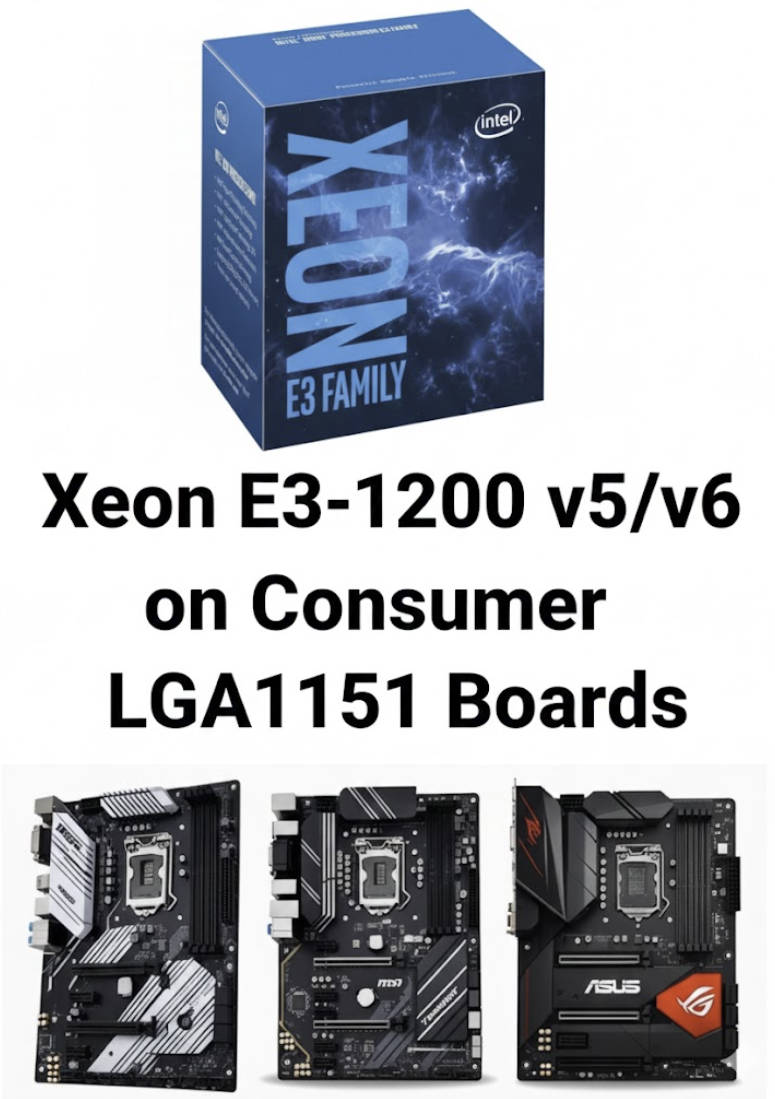
The Xeon E3 v5 and v6 processor series are intended for LGA1151 servers and workstations. Architecturally they mirror the desktop Core SKUs based on Skylake (v5) and Kaby Lake (v6), but Intel officially restricts them to motherboards with the C232/C236 server chipsets. Like most non‑K desktop parts, they have locked multipliers, but they add ECC support along with Intel vPro and TXT (Trusted Execution Technology).
Socket 1151 was the first platform where Intel prevented server‑class CPUs from running in standard consumer motherboards. Previously, server/workstation CPUs would run on consumer boards out of the box.
These CPUs are attractive because they cost noticeably less than their desktop counterparts while delivering nearly identical performance. There’s just one problem: you need to make them run on regular 100‑ and 200‑series boards. That’s what we’ll do today — and we’ll also see how relevant these processors are in 2026.
Specifications
Xeon E3‑1200 v5
| Model | Cores \ Threads | Base Frequency \ Max Turbo Frequency | L3 Cache | Graphics | TDP | Memory support |
|---|---|---|---|---|---|---|
| Xeon E3-1280 v5 | 4 \ 8 | 3,7 \ 4,0 GHz | 8 MB | - | 80 W | DDR4-2133, DDR3L-1600 |
| Xeon E3-1275 v5 | 4 \ 8 | 3,6 \ 4,0 GHz | 8 MB | HD P530 | 80 W | DDR4-2133, DDR3L-1600 |
| Xeon E3-1270 v5 | 4 \ 8 | 3,6 \ 4,0 GHz | 8 MB | - | 80 W | DDR4-2133, DDR3L-1600 |
| Xeon E3-1268L v5 | 4 \ 8 | 2,4 \ 3,4 GHz | 8 MB | HD P530 | 35 W | DDR4-2133, DDR3L-1600 |
| Xeon E3-1260L v5 | 4 \ 8 | 2,9 \ 3,9 GHz | 8 MB | - | 45 W | DDR4-2133, DDR3L-1600 |
| Xeon E3-1245 v5 | 4 \ 8 | 3,5 \ 3,9 GHz | 8 MB | HD P530 | 80 W | DDR4-2133, DDR3L-1600 |
| Xeon E3-1240 v5 | 4 \ 8 | 3,5 \ 3,9 GHz | 8 MB | - | 80 W | DDR4-2133, DDR3L-1600 |
| Xeon E3-1240L v5 | 4 \ 8 | 2,1 \ 3,2 GHz | 8 MB | - | 25 W | DDR4-2133, DDR3L-1600 |
| Xeon E3-1235L v5 | 4 \ 4 | 2,0 \ 3,0 GHz | 8 MB | HD P530 | 25 W | DDR4-2133, DDR3L-1600 |
| Xeon E3-1230 v5 | 4 \ 8 | 3,4 \ 3,8 GHz | 8 MB | - | 80 W | DDR4-2133, DDR3L-1600 |
| Xeon E3-1225 v5 | 4 \ 4 | 3,3 \ 3,7 GHz | 8 MB | HD P530 | 80 W | DDR4-2133, DDR3L-1600 |
| Xeon E3-1220 v5 | 4 \ 4 | 3,0 \ 3,5 GHz | 8 MB | - | 80 W | DDR4-2133, DDR3L-1600 |
Xeon E3‑1200 v6
| Model | Cores \ Threads | Base Frequency \ Max Turbo Frequency | L3 Cache | Graphics | TDP | Memory support |
|---|---|---|---|---|---|---|
| Xeon E3-1285 v6 | 4 \ 8 | 4,1 \ 4,5 GHz | 8 MB | UHD P630 | 79 W | DDR4-2400, DDR3L-1866 |
| Xeon E3-1280 v6 | 4 \ 8 | 3,9 \ 4,2 GHz | 8 MB | - | 72 W | DDR4-2400, DDR3L-1866 |
| Xeon E3-1275 v6 | 4 \ 8 | 3,8 \ 4,2 GHz | 8 MB | UHD P630 | 73 W | DDR4_2400, DDR3L-1866 |
| Xeon E3-1270 v6 | 4 \ 8 | 3,8 \ 4,2 GHz | 8 MB | - | 72 W | DDR4-2400, DDR3L-1866 |
| Xeon E3-1245 v6 | 4 \ 8 | 3,7 \ 4,1 GHz | 8 MB | UHD P630 | 73 W | DDR4-2400, DDR3L-1866 |
| Xeon E3-1240 v6 | 4 \ 8 | 3,7 \ 4,1 GHz | 8 MB | - | 72 W | DDR4-2400, DDR3L-1866 |
| Xeon E3-1230 v6 | 4 \ 8 | 3,5 \ 3,9 GHz | 8 MB | - | 72 W | DDR4-2400, DDR3L-1866 |
| Xeon E3-1225 v6 | 4 \ 4 | 3,3 \ 3,7 GHz | 8 MB | UHD P630 | 73 W | DDR4-2400, DDR3L-1866 |
| Xeon E3-1220 v6 | 4 \ 4 | 3,0 \ 3,5 GHz | 8 MB | - | 72 W | DDR4-2400, DDR3L-1866 |
Standout Models
Key Differences Between the Lineups
Xeon E3 v5 and v6 are generally very close in capabilities and performance — the same 4 cores, the same instruction set, and an almost identical architecture. The v6 is more of a “polished” v5: it has slightly higher base and turbo clocks, officially faster memory support (DDR4‑2400 instead of 2133), and slightly higher IPC, making it on average a few percent faster at the same TDP.
Gaming & work
- Xeon E3‑1240 / 1270 / 1280 (v6) — essentially Core i7‑7700‑class equivalents, differing mainly in clock speeds.
- Xeon E3‑1230 / 1240 / 1270 / 1280 (v5) — analogs of the Core i7‑6700, with minimal differences among models.
Synthetic and gaming tests, plus a performance comparison of the E3‑1230 v6 and E3‑1270 v6:

Gaming performance of E3-1230 v6 with GTX 1080ti:

Home server / NAS / HTPC
Here it makes more sense to choose energy‑efficient models (low TDP) and/or chips with integrated graphics.
- Xeon E3‑1245 v6 — 4C/8T, clocks close to a Core i7‑7700 + integrated P630 graphics.
- Xeon E3‑1225 (v6/v5) — the most budget‑friendly chips with an iGPU. Only 4 threads, but sufficient performance for NAS tasks.
- Xeon E3‑1260L v5 — low power consumption, 8 threads, no iGPU. A good option for quiet and cool systems.
How to run Xeon E3 v5/v6 on regular motherboards
👉 Everything about Coffee-mod and a detailed overview of CoffeeTime settings can be found in this dedicated article.
Which boards are suitable: any models with 100‑ and 200‑series chipsets (H110, B150, B250, H170, Q150, Q170, Z170, H270, Q250, Q270, Z270). More than likely, three 300‑series chipsets will also work: H310C, B365, and Z370.
Procedure:
- Download or extract a BIOS dump
- Modify the BIOS
- Flash the modded BIOS
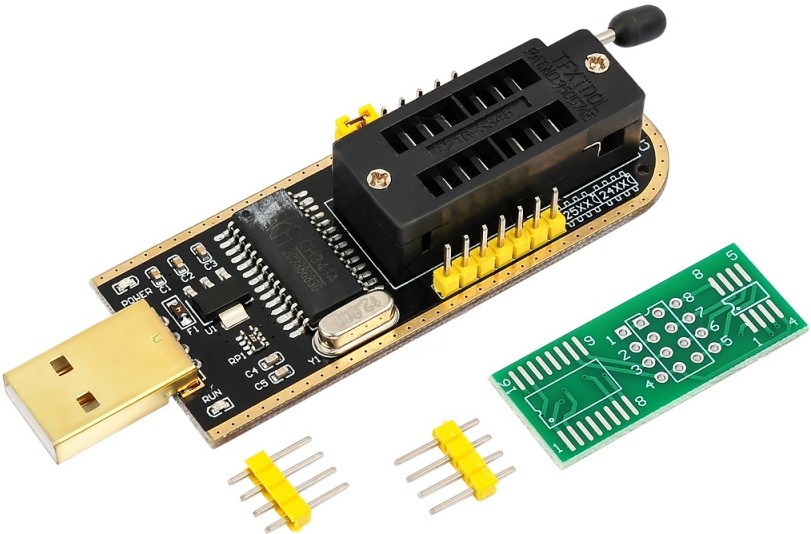
Required equipment: an SPI programmer.
Difficulty: Medium.
The process isn’t particularly difficult: most steps take just a few clicks and won’t pose problems for most users. The main difficulty is flashing the modded BIOS, because at this stage you’ll usually need an SPI programmer, and not everyone is comfortable using one. If working with the programmer seems daunting, it may be better to take the board to a local computer repair shop and let a technician do the job.
BIOS modification
You can download the BIOS from the manufacturer’s website, or dump it from your board.
If you have an ASUS board
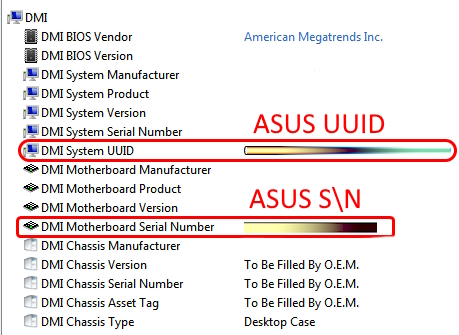
ASUS motherboards have a Baseboard S/N and a UUID — unique factory identifiers for your unit. If you don’t transfer them into the new BIOS, you may encounter issues with Windows activation, certain apps, services, etc. The BIOS also stores unique network MAC addresses that are worth preserving as well. That’s why for ASUS boards it’s highly advisable to make a BIOS dump.
If that’s not possible, you can retrieve the data from a working system:
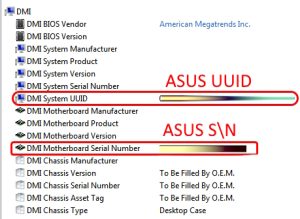
- The S/N and UUID are stored in the module FD44820B-F1AB-41C0-AE4E-0C55556EB9BD (you can find it with UEFITool or similar software). You can view this data in AIDA64 (Computer > DMI > Motherboard or Computer > Summary). You can also obtain the motherboard S/N via the CMD command “wmic baseboard get serialnumber”.
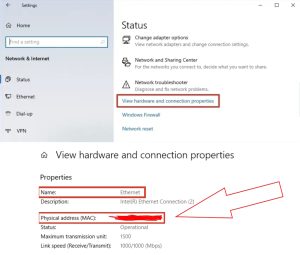
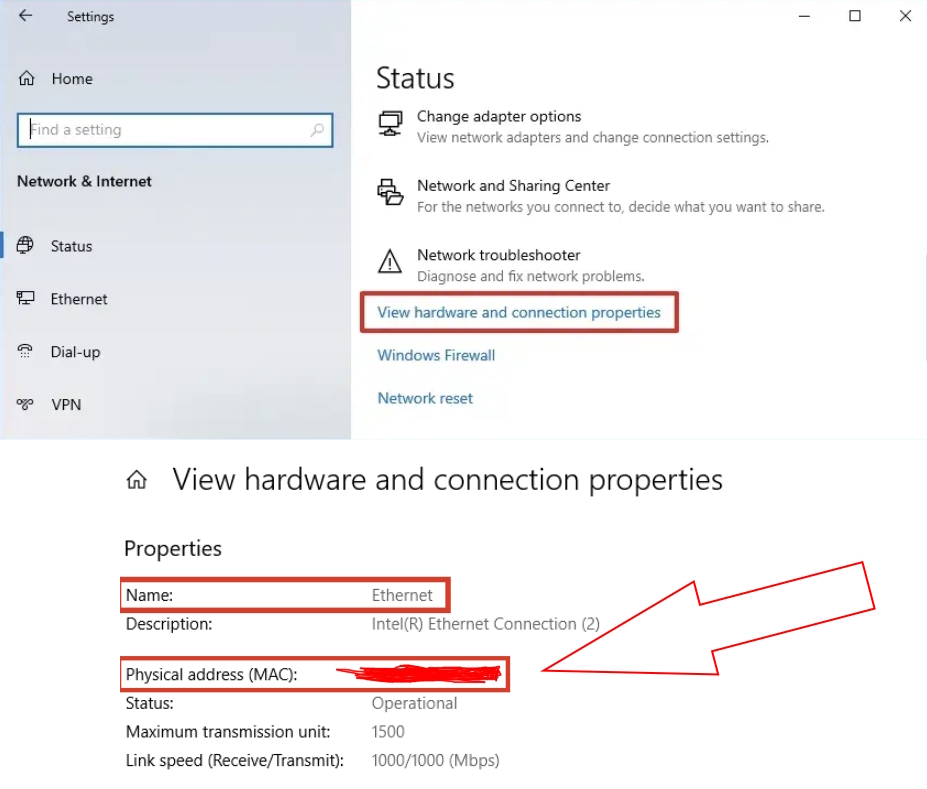
- You can find the MAC address in Windows in the network adapter properties or with the CMD command “ipconfig /all”.
A lost UUID cannot be recovered — be careful!
If your board uses an Intel network controller
The MAC address of Intel NICs is stored in the GbE region and will be lost when reflashing. This may cause network conflicts or even render the NIC inoperable.
If you can’t dump the BIOS, at least save the MAC address. You can find it in the Windows adapter properties; it’s also often printed on a sticker on the board.
For boards with a Realtek NIC, the GbE region is absent; transferring the MAC isn’t required.
Procedure:
- Download CoffeeTime 0.99
- Open the BIOS in CoffeeTime
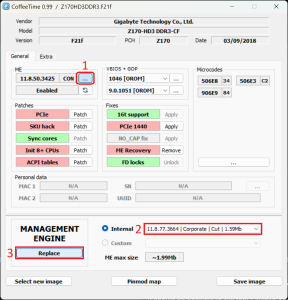
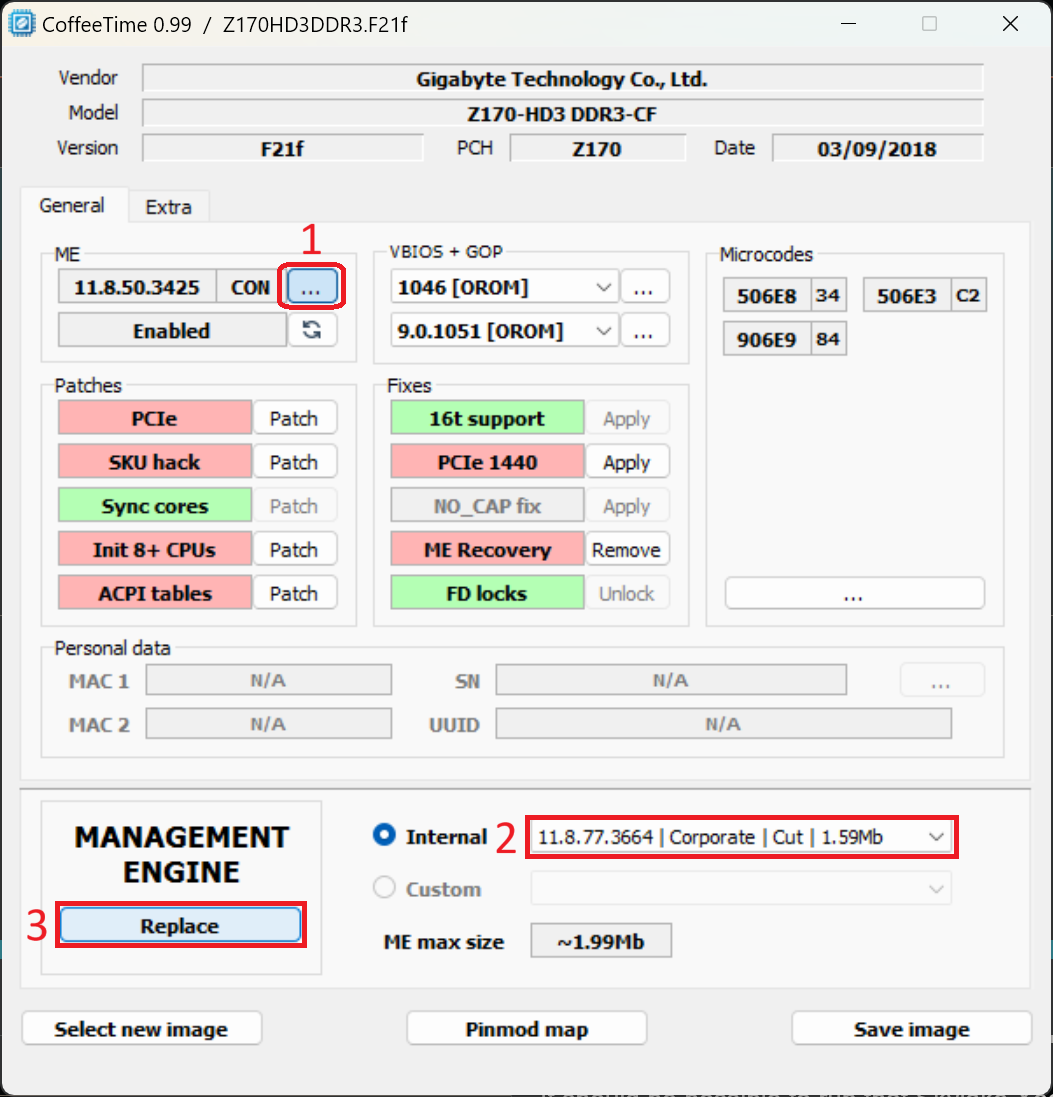
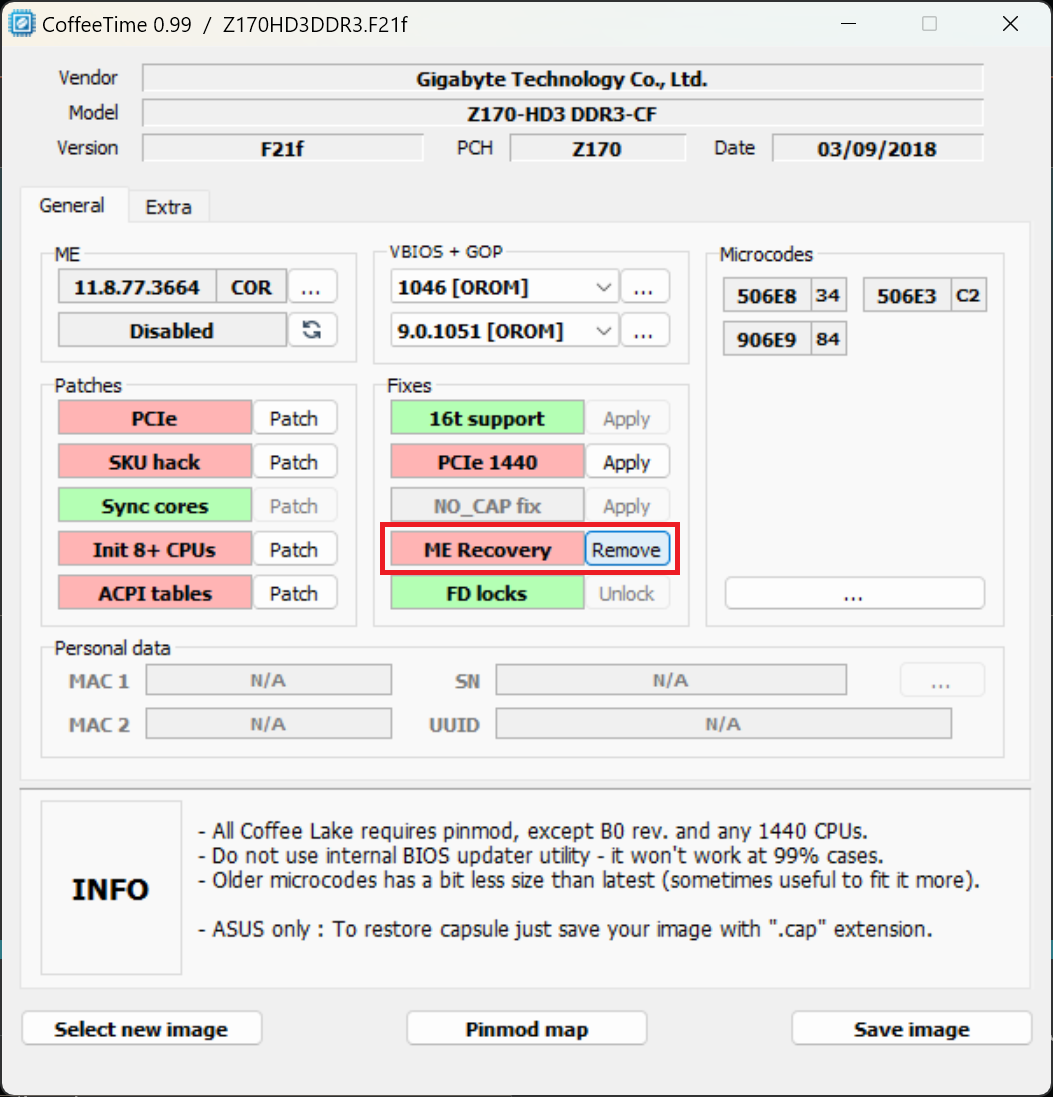
- Click the three dots in the ME section (upper left) and choose “11.8.77.3664 Corp Cut” in the dropdown at the bottom, then in the lower left (Management Engine) click “Replace”. After this, the ME version will change. For ASUS owners: it’s recommended to try “11.7.0.3307 Corp Cut” first, and only move to 11.8.77.3664 if you can’t get the board to POST.
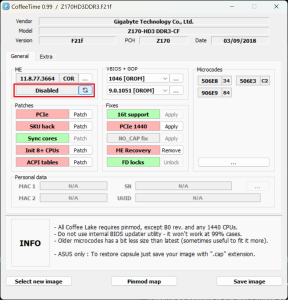
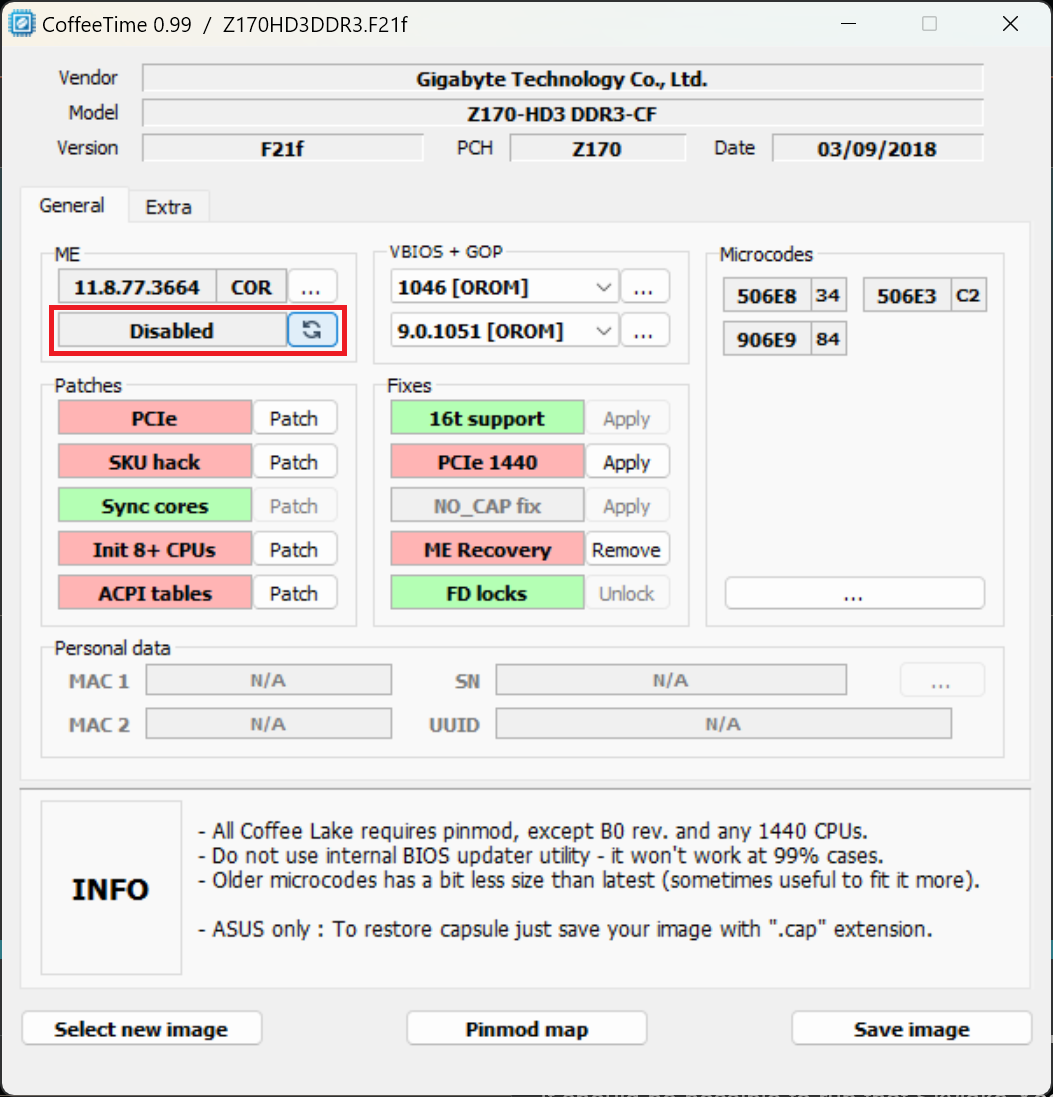
- In the same ME section, below the three dots, click the button with the arrows; the ME value will change to “Disabled”.
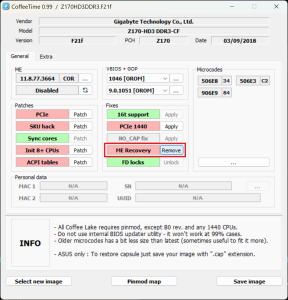
- In the “Fixes” section, for “ME Recovery” click “Remove” so it turns green (this is usually required on ASUS boards, but nothing bad will happen if you do it for other brands as well). Other patches and fixes are optional in our case and up to you.
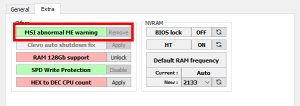
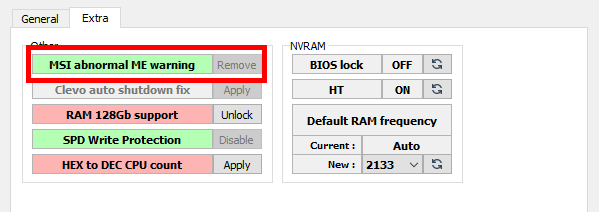
- (MSI only) On the Extra tab, click “Remove” next to “MSI abnormal ME warning” to disable the ME‑disabled warning at startup.
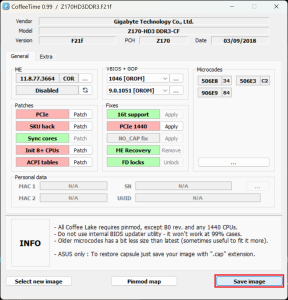
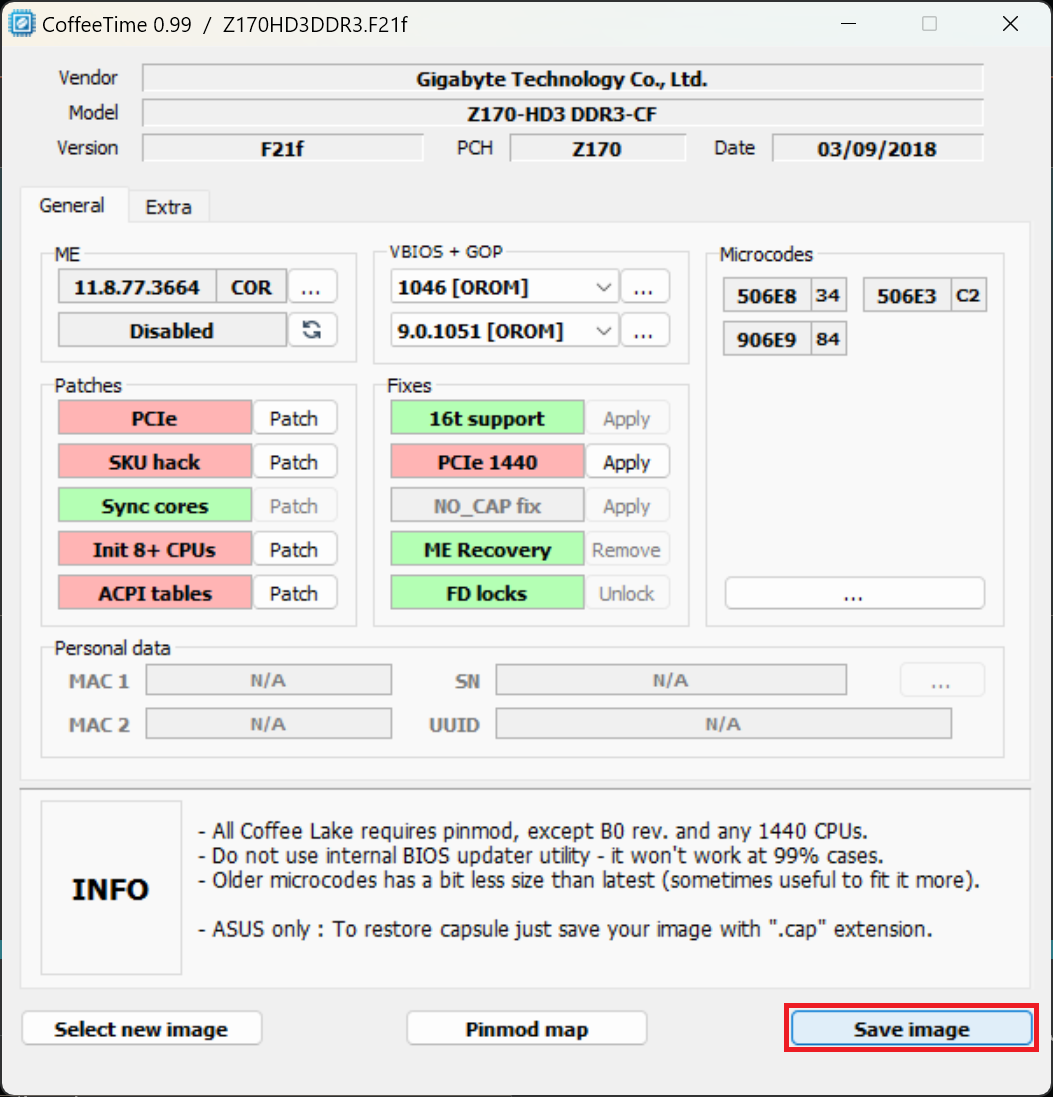
- Click “Save image” at the bottom right and save your modded BIOS. Note that CoffeeTime saves the BIOS as “.bin” by default, not in the original format.
Do you need to add microcodes?
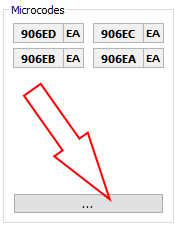
For 100‑ and 200‑series chipsets you typically don’t need to add or replace microcodes, since for Xeon v5/v6 they match retail Skylake/Kaby Lake and are already present in the BIOS.
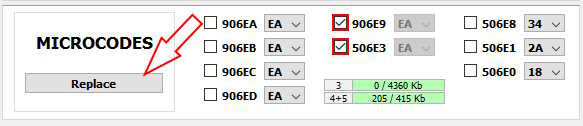
If you’re modding H310C, B365, or Z370 boards, you’ll also need to add microcode 506E3 (Skylake) or 906E9 (Kaby Lake). You can do this in CoffeeTime as well.
Flashing
- Avoid built‑in BIOS flash utilities for modded images; they often fail or may even soft‑brick the board.
- Some boards can be software-flashed (usually via FlashProgrammingTool v11 or AFUDOS 3.05.04) — typically Gigabyte, MSI, and Maxsun models.
- Most models from ASUS, ASRock, Biostar, and many other vendors block writes to the FD and ME regions, so for these it’s best to use an SPI programmer.
There’s no 100% guarantee the board will boot successfully after flashing. Even if your board can be flashed in software, we still strongly recommend having an SPI programmer on hand. If something goes wrong, returning to stock BIOS will only be possible with it.
After flashing, be sure to clear the BIOS — for example, with the CLR_CMOS jumper or by cutting power and removing the battery for a few minutes.
First boot
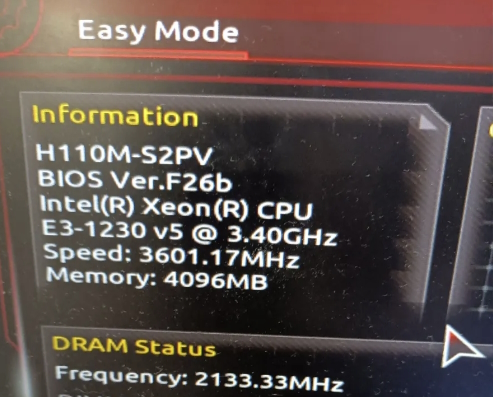
It’s best to perform the first boot with a single RAM module. Make sure the memory can operate at the CPU’s native frequency (DDR4‑2133/2400). The time to first POST can be much longer than usual. The system may reboot several times during training — this is normal. On most boards no additional settings are required.
ASUS motherboards have a long‑standing quirk: in automatic power management, the board may misread the CPU’s VID requests and apply excessive voltage — up to 1.45–1.55 V. To avoid this, on the first entry into BIOS Setup set “0.01” for the “IA AC Load Line” and “IA DC Load Line” parameters.
After booting, check CPU voltages and temperature; it is recommended to run a few stress tests and verify system stability.
If the system didn’t start
If it doesn’t POST (black screen) but does boot with the “native” CPU, try the following:
- A different BIOS version
- A different ME version (11.7.0.3307 Corp)
- Enable all available patches in CoffeeTime (mainly intended for Coffee Lake CPUs, but there are cases where they also affect other models)

Written by
Senior Hardware Specialist proving you don't need top-tier gear to game. Expert in smart upgrades and budget-friendly PC restoration.