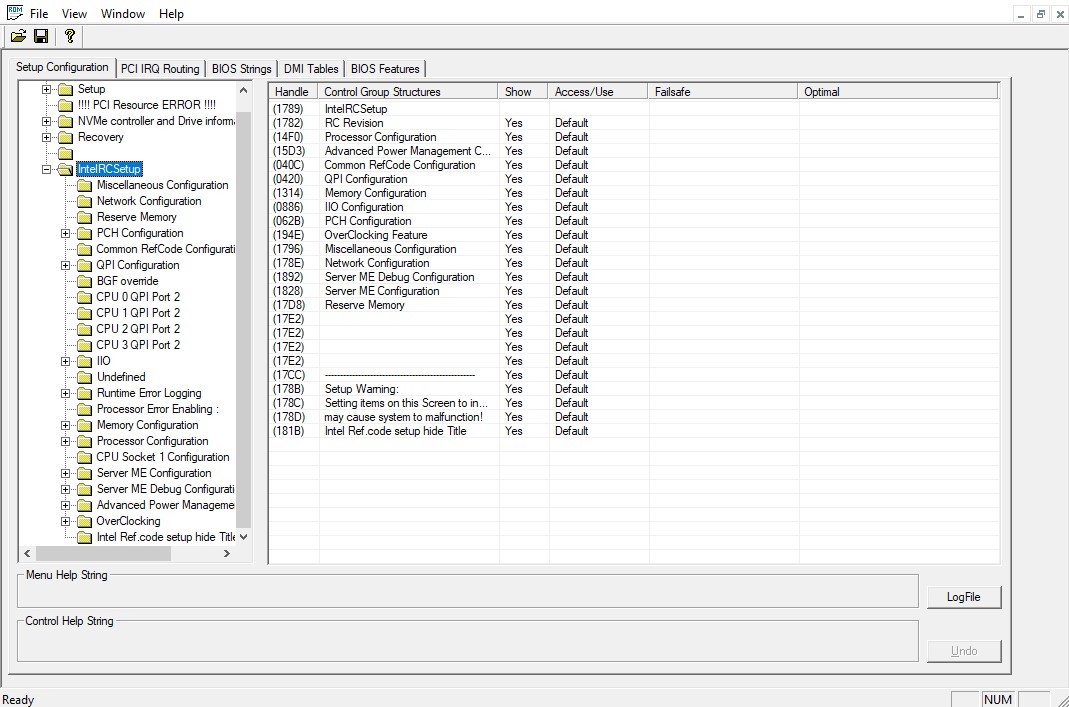
What is AMIBCP
AMIBCP (AMI BIOS Configuration Program) is a BIOS/UEFI configuration editor for AMI Aptio firmware. It lets you view and modify the Setup menu structure, access levels (Access/Use), item visibility (Show), and default values (Default) for Setup variables.
AMIBCP is widely used in the DIY computer-building community for fine-tuning motherboard behavior and customizing settings for specific hardware.
AMIBCP versions and compatibility
- AMIBCP 4.x — works with Aptio IV–based firmware
- AMIBCP 5.x — works with Aptio V–based firmware
How to determine your Aptio version:
- Intel 6/7/8 Series chipsets (H61–Z87), X58, X79 → in most cases Aptio IV
- Starting from the 100 Series (H110–Z170 and newer), X99/X299 → typically Aptio V
- Chinese LGA2011 and LGA1156 boards → always Aptio IV
- Chinese LGA2011‑3 boards → always Aptio V
If you already have a BIOS dump, the Aptio version may be visible in UEFITool (Ctrl+F → Text tab → Unicode → search for “AptioV”, “Aptio V”, “Aptio IV”) or in AFUDOS / AFUWIN (when opening a ROM, the header often shows “Aptio IV/V”).
Risk warning
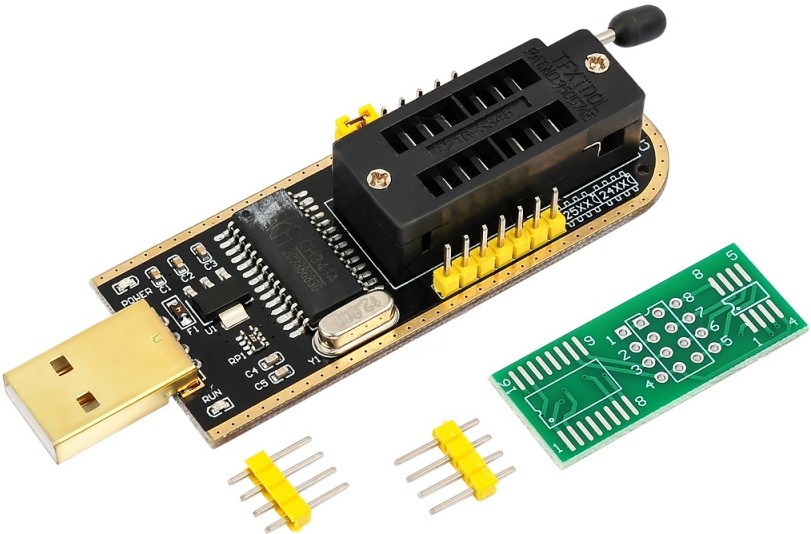
Use at your own risk. Editing and flashing modified BIOS/UEFI images can permanently brick your motherboard, corrupt firmware, and void your warranty. There is no guarantee of success. Always make a full backup of the BIOS and have a tested recovery method (e.g., a CH341A programmer). If you’re not fully confident in what you’re doing, do not proceed.
Interestingly, the system usually boots fine with v3 or low-core v4 CPUs. Use AMIBCP with caution if you plan to use top-tier multi-core processors.
Quick interface guide

- Left tree: Setup menu (sections and forms).
- Names of specific options/menu items.
- Visibility: Show/Hide column.
- Access level: Access/Use column.
Basic workflow
- Open your BIOS/Region in the appropriate AMIBCP version.
- Find the target section/option in the Setup tree.
- Change:
- Access/Use → User (to make the item accessible to a normal user)
- Show → Yes/Enabled (if the item is hidden)
- Default → desired value (use with caution)
- Save the modified image (Save/Save As).
- Flash the BIOS using an appropriate method.
- After flashing: perform a full settings reset (clear CMOS).
Download AMIBCP
⚠️ Disclaimer
These tools are proprietary software owned by their respective copyright holders.
They are not officially distributed to end-users and are provided here strictly for educational and research purposes only.
Use them entirely at your own risk. Neither the website nor the uploader assumes any responsibility for potential damage, misuse, or legal consequences.
📦 Note: Due to hosting and licensing limitations, all software files are shared via Telegram channel.
Join to access the complete collection of tools and updates in one place.
