Table of Contents
What is MMTool
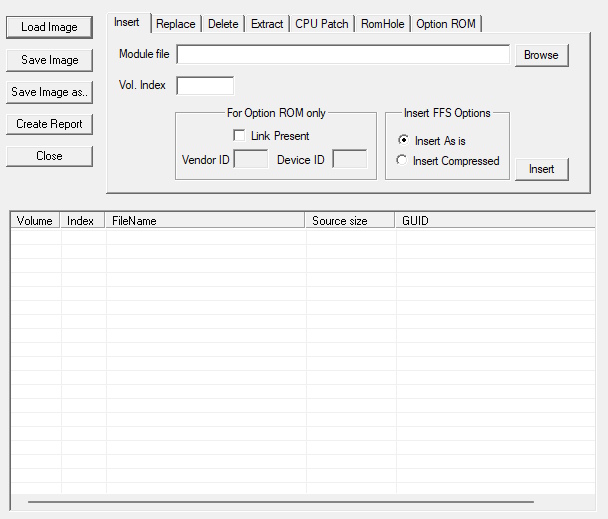
MMTool — short for Module Management Tool — is American Megatrends’ utility for working with the raw
module structure of an AMI Aptio BIOS/UEFI image. Where AMIBCP edits menu layout and Access/Use rights, and AMISCE edits live NVRAM
values after the BIOS is already flashed, MMTool operates at a lower level: it opens the actual ROM file and lets
you insert, delete, extract, or replace individual modules packed inside it — PEI/DXE drivers, legacy and UEFI Option
ROMs, the boot splash logo, CPU microcode patches, and more. In the legacy (pre-UEFI) AMIBIOS8 generation the same
functionality shipped as a command-line tool named AMIMMDOS (DOS) / AMIMMWIN (Windows);
on modern Aptio IV/V firmware it’s simply called MMTool and is used mainly through its GUI.
Common use cases for MMTool include: injecting an NVMe DXE driver so an older board can boot from an NVMe SSD, updating
CPU microcode to add support for a newer CPU, swapping or removing Option ROMs to free up space, extracting or replacing
the boot logo for a custom splash screen, or just inspecting what’s inside a ROM before deciding what else needs to change.
MMTool versions and compatibility
Match the tool version to your BIOS generation — a build made for one Aptio generation generally won’t open a ROM from
another:
| BIOS / Firmware | Tool & Version | Notes |
|---|---|---|
| AMIBIOS8 (legacy / pre-UEFI) | AMIMMDOS / AMIMMWIN (command line); Windows GUI versions from this era are usually labeled under the 3.x version range | Works directly on the flat legacy ROM structure — CPU microcode patches, module insert/delete/extract/replace, and reading/writing the SLP (System Locked Preinstallation) string. |
| Aptio IV (UEFI) | MMTool v4.50.0.23 | The standard tool for Aptio IV images (roughly the generation up to Z97-class chipsets). |
| Aptio V (UEFI) — early boards | MMTool v5.0.0.7 | Built for the first wave of Aptio V boards (X99 / 100-series and up). Known to mishandle certain module types on some newer chipsets. |
| Aptio V (UEFI) — newer boards | MMTool v5.2.0.24 (and later community-patched builds) | Better compatibility with later chipsets. Even so, no single build is guaranteed to work with every modern image. Very recent boards can still throw a “firmware volume open error” — in that case, UEFITool is your best alternative for inspecting and extracting modules. |
Not sure which Aptio generation your board runs? Open a BIOS dump in UEFITool (Ctrl+F → Text tab → Unicode)
and search for “Aptio IV” / “Aptio V”, or check the header AFUDOS/AFUWIN prints when opening the ROM.
Risk warning
Use MMTool at your own risk. It edits the firmware image itself, not a copy running in memory, so any mistake made here
directly affects the firmware you flash to the motherboard:
- Always keep an untouched copy of the original ROM before inserting, deleting, or replacing anything.
- Match module type and compression to the original when replacing something (e.g., don’t insert an uncompressed
driver where a compressed one is expected) — a compression or type mismatch can prevent the BIOS from loading the module
or cause a POST failure. - Rebuild and sanity-check the saved ROM with UEFITool or a checksum tool before flashing.
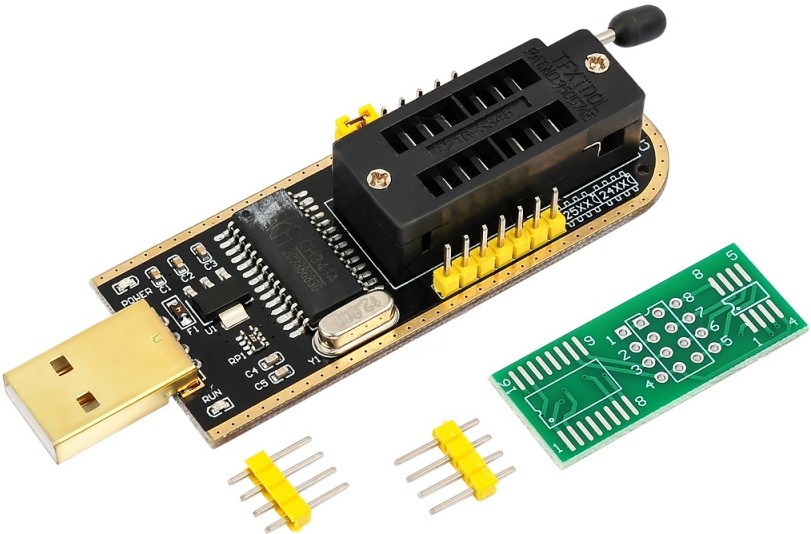
- Keep a flashing/recovery method ready (a SPI programmer such as a CH341A is the usual choice) in case a modified ROM
doesn’t boot. - Some OEMs sign or lock their firmware images and verify signatures before flashing. On these boards, even a properly
modified ROM saved by MMTool will be rejected by official vendor flashing tools.
Basic workflow
- Open your BIOS file (.ROM / .BIN / .CAP) in MMTool.
- Find the module you need — the CPU Patch, Option ROM, or general module list, depending on what you’re changing.
- Extract and save a backup copy of the original module before making any changes.
- Use Insert/Replace to load the new module (driver, Option ROM, microcode, or logo), matching its type and
compression to what was there before. - Save the modified image under a new filename — never overwrite your only clean copy.
- Flash carefully, with a recovery method on hand in case the board doesn’t POST.
Download MMTool
⚠️ Disclaimer
These tools are proprietary software owned by their respective copyright holders.
They are not officially distributed to end-users and are provided here strictly for educational and research purposes only.
Use them entirely at your own risk. Neither the website nor the uploader assumes any responsibility for potential damage, misuse, or legal consequences.
📦 Note: Due to hosting and licensing limitations, all software files are shared via Telegram channel.
Join to access the complete collection of tools and updates in one place.
