⚠️ Read this first. Flashing a modified BIOS always carries risk. If something goes wrong mid-flash or the modified image is malformed, you can end up with a board that won’t boot (“bricked”), recoverable only with a SPI programmer. Everything below is done at your own risk — go slowly, keep a known-good backup of your original dump, and don’t skip the verification steps.
What Is Resizable BAR?
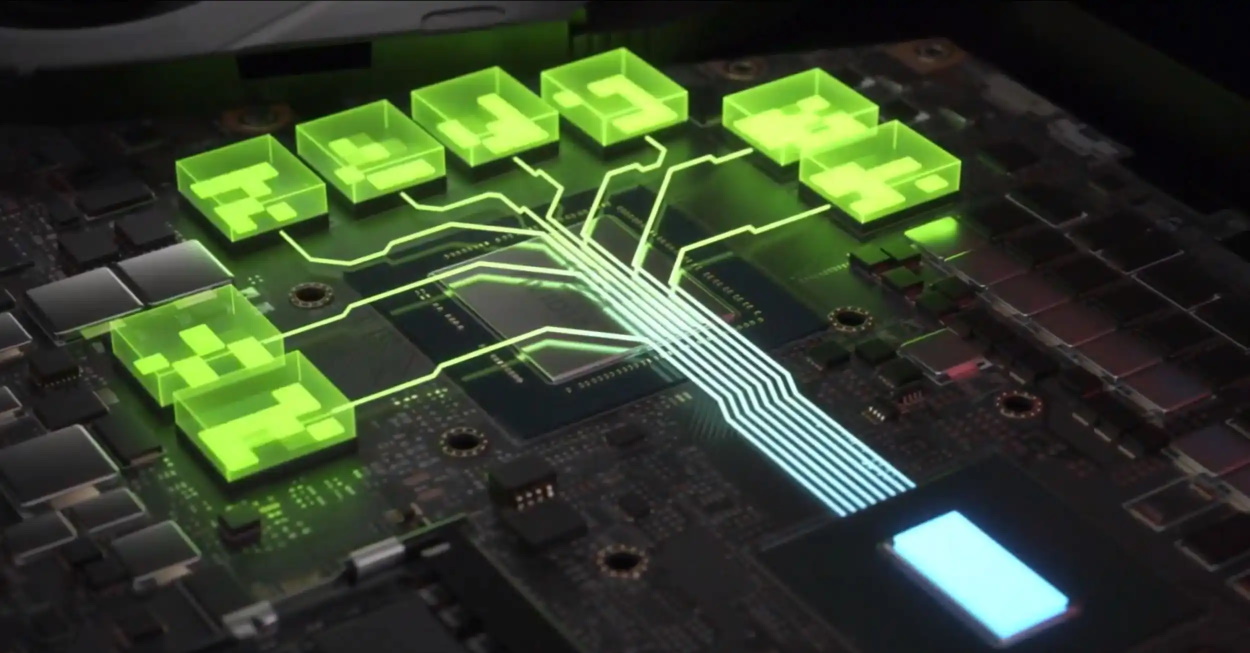
Resizable BAR (ReBar) is a PCI Express feature that lets the CPU access the GPU’s entire video memory (framebuffer) in a single window, instead of being limited to small, fixed-size chunks (usually 256MB) as with classic BAR. As a result, the CPU and GPU can exchange data far more efficiently, which — depending on the game and engine — translates into a real, measurable FPS boost.
AMD calls its version “Smart Access Memory,” but it’s the same PCIe mechanism underneath.
How Much Performance Does It Actually Add?
It depends heavily on your system, GPU, and the specific game. NVIDIA has cited gains of up to roughly 12% in its own benchmarks, while AMD has advertised improvements as high as 16% in certain titles. In plenty of games the difference is small or barely noticeable — treat it as a possible bonus, not a guaranteed FPS jump across the board.
Before You Start: Requirements
Modding your BIOS will only get you half of what you need — ReBar is a handshake between motherboard, GPU, and OS, and all three pieces have to cooperate.
Hardware:
- A motherboard with PCI Express 3.0 support (this is the method’s baseline; some users have reported success even on older PCIe 2.0 systems).
- A GPU that actually supports UEFI GOP and Resizable BAR.
- Officially supported: NVIDIA RTX 30-series and newer (some cards may also need a vBIOS update); AMD RX 6000-series and newer.
- Community-tested on some older cards too (e.g. RX 570/580 report working with driver-side tricks), though this isn’t guaranteed.
- NVIDIA’s older Turing generation (GTX 16-series and RTX 20-series) can also be enabled — but through a different tool (see below).
Resizable BAR isn’t just a nice-to-have for Intel Arc GPUs — without it, performance can drop noticeably in many games, so if you’re pairing an Arc card with an older board, this mod is effectively mandatory rather than optional.
Software / firmware:
- The “Above 4G Decoding” option must exist (and be enabled) in your BIOS.
- A 64-bit OS installed in UEFI mode (not Legacy/MBR).
- CSM (Compatibility Support Module) disabled.
Before touching anything, confirm your GPU’s UEFI and ReBar readiness with GPU-Z.
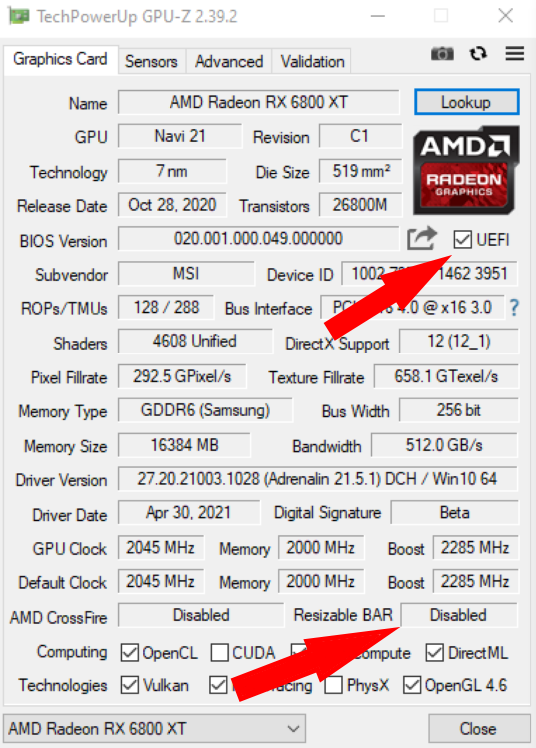
Check that “UEFI” is ticked; “Resizable BAR” showing “Disabled” at this stage is completely normal — you haven’t added support yet.
On Chinese LGA2011-3/X99 boards, “Above 4G Decoding” usually lives under Advanced → PCI Subsystem Settings. If it’s missing entirely, it may just be hidden — you can reveal it with AMIBCP by changing the option’s “Access/Use” attribute from “Default” to “USER.”
The Tools You’ll Need
Everything here is free and open-source:
| Tool | Purpose |
|---|---|
ReBarUEFI (ReBarDxe.ffs + ReBarState.exe) |
The actual DXE driver that patches ReBar support into your firmware, plus the Windows utility to set the BAR size |
| NvStrapsReBar | Drop-in replacement for the above, but for NVIDIA Turing GPUs (GTX 16 / RTX 20 series) |
| UEFITool 0.28.0 | Lets you open a BIOS dump, browse its internal modules, and insert the new driver |
| UEFIPatch (bundled with UEFITool 0.28.0) | A companion tool that fixes common 64-bit BAR handling bugs in older AMI Aptio firmware |
| A flashing utility for your platform | Intel FPT, AFUWIN/AFUDOS, or a friendlier all-in-one tool depending on your board |
Step-by-Step: Injecting ReBar Support
This is the universal method — originally documented for Chinese LGA2011-3/X99 boards, but it applies to most AMI Aptio-based UEFI firmware regardless of socket.
1. Dump your current BIOS
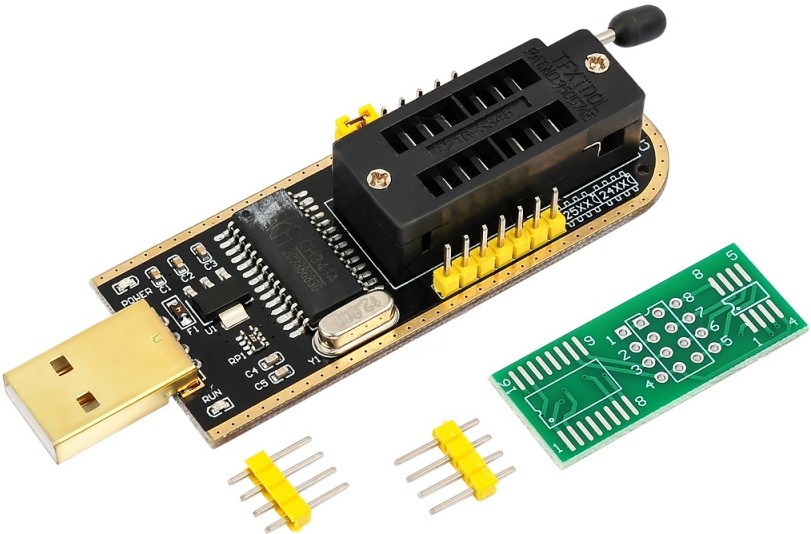
Use your platform’s flashing tool (Intel FPT, AFUWIN/AFUDOS, or a friendlier GUI wrapper) to read out a full copy of your current firmware. You can also pull a dump with a SPI programmer, or — if you can find one for your exact board and revision — start from a dump someone else already posted. Whatever you use, keep this original file safe as a rollback.
2. Insert the ReBar driver into the dump
- Open UEFITool and load your BIOS dump.
- Expand Intel Image → BIOS Region.
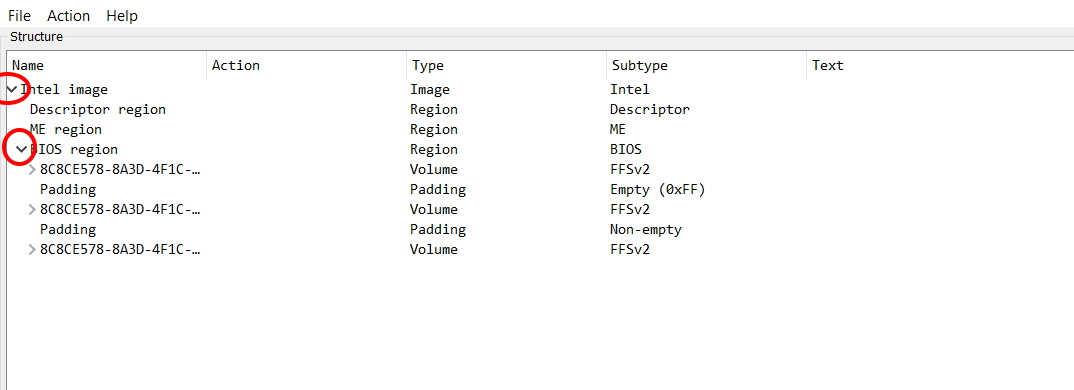
- Find the branch containing the DXE drivers — on most AMI Aptio boards this is the second-from-last top-level entry under BIOS Region.
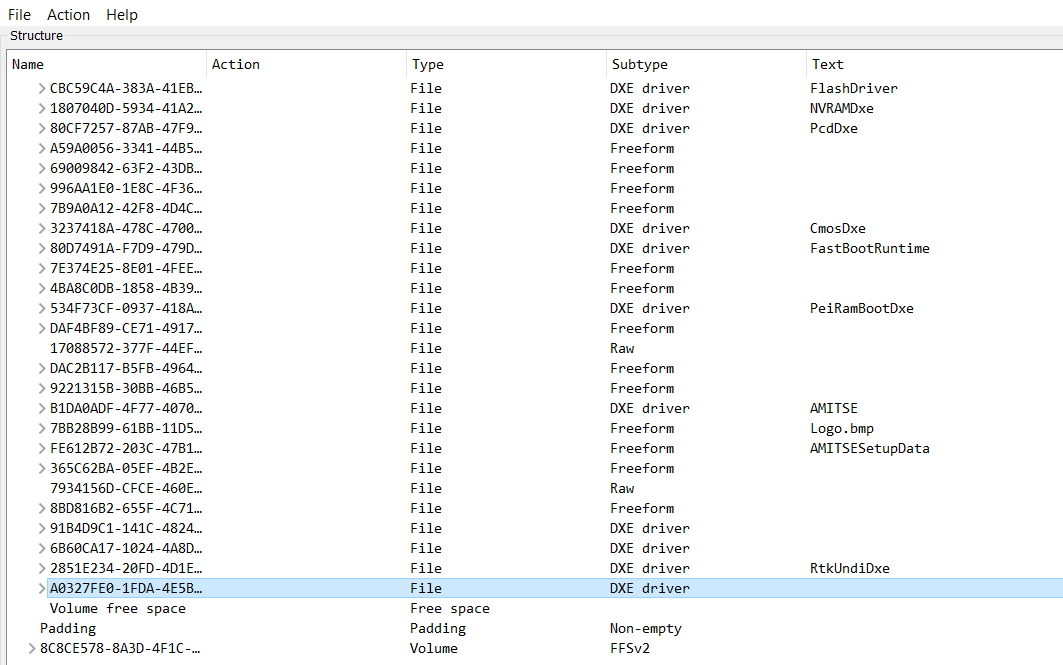
- Scroll to the very bottom of that list and select the last DXE driver.
- Right-click it and choose Insert After.
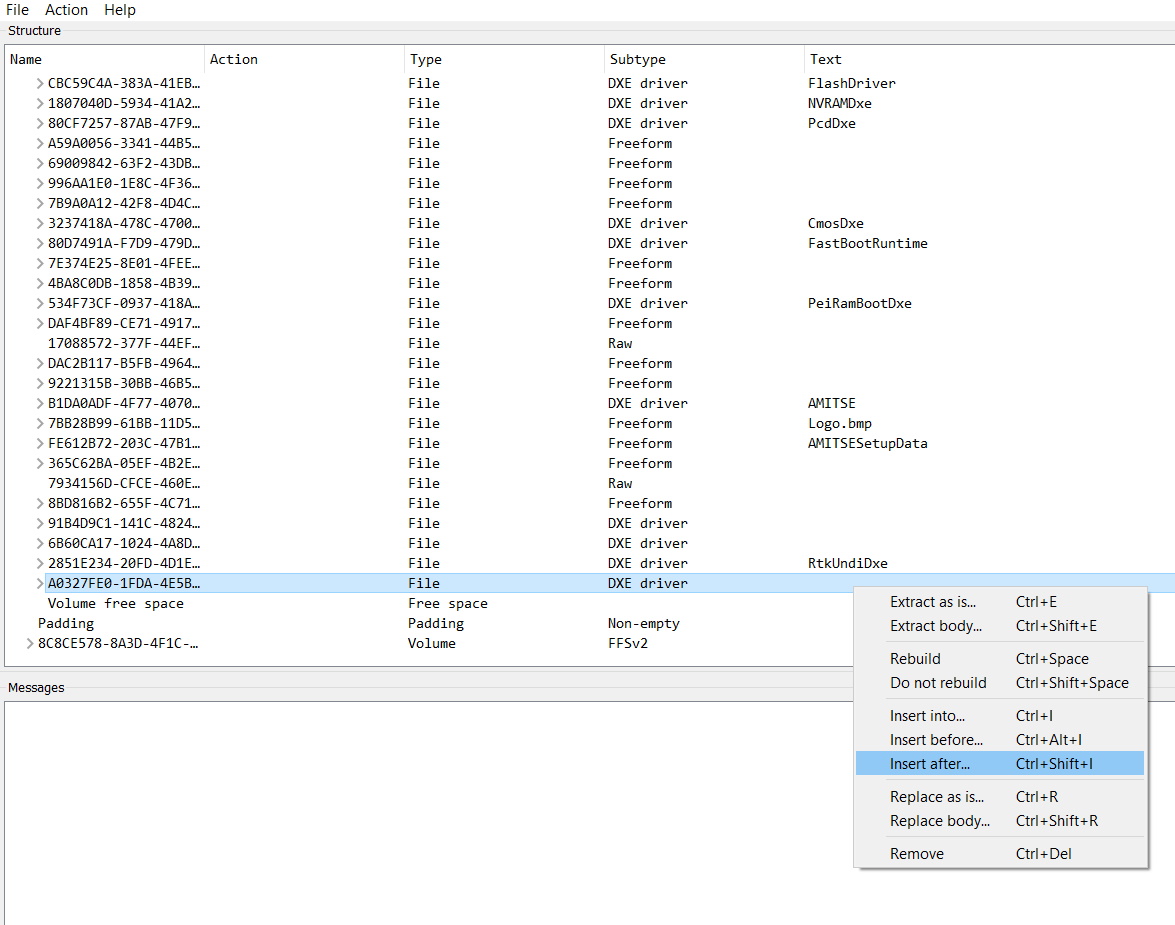
- In the file picker, select the
ReBarDxe.ffsfile you downloaded from the ReBarUEFI releases.

- Save the modified image via File → Save image file. When asked “Open reconstructed file?” you can safely say no and close UEFITool.
Using an NVIDIA Turing GPU (GTX 16-series / RTX 20-series)? Swap
ReBarDxe.ffsandReBarState.exeforNvStrapsReBar.ffsandNvStrapsReBar.exefrom the NvStrapsReBar project instead — the injection steps are identical, though the configuration utility works a bit differently. Check that project’s own docs for details.
3. Flash the modified image
Reflash the patched dump using the same tool you used to read it out originally.
4. First boot into the BIOS
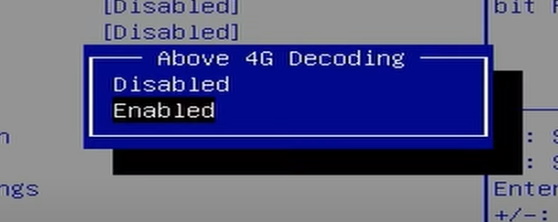
- Reset the BIOS to default/optimized settings.
- Enable Above 4G Decoding.
- Confirm CSM is disabled and that your OS drive will boot in pure UEFI mode.
- (Optional) Re-apply your memory timings and any other tweaks you had before.
- Save and reboot into Windows.
5. Set the BAR size in Windows
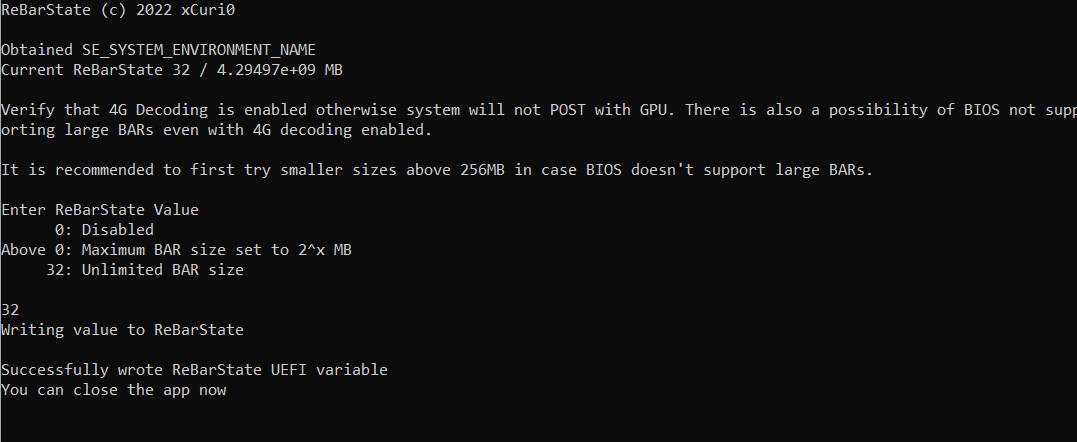
- Run
ReBarState.exeas Administrator. - Type
32and hit Enter — this requests an “unlimited” BAR size, which is the value most systems should be able to use. If it doesn’t work for you, you may need to try a smaller size. - Wait for the confirmation message:
Successfully wrote ReBarState UEFI variable. - Close the window and reboot.
6. Verify it’s actually working
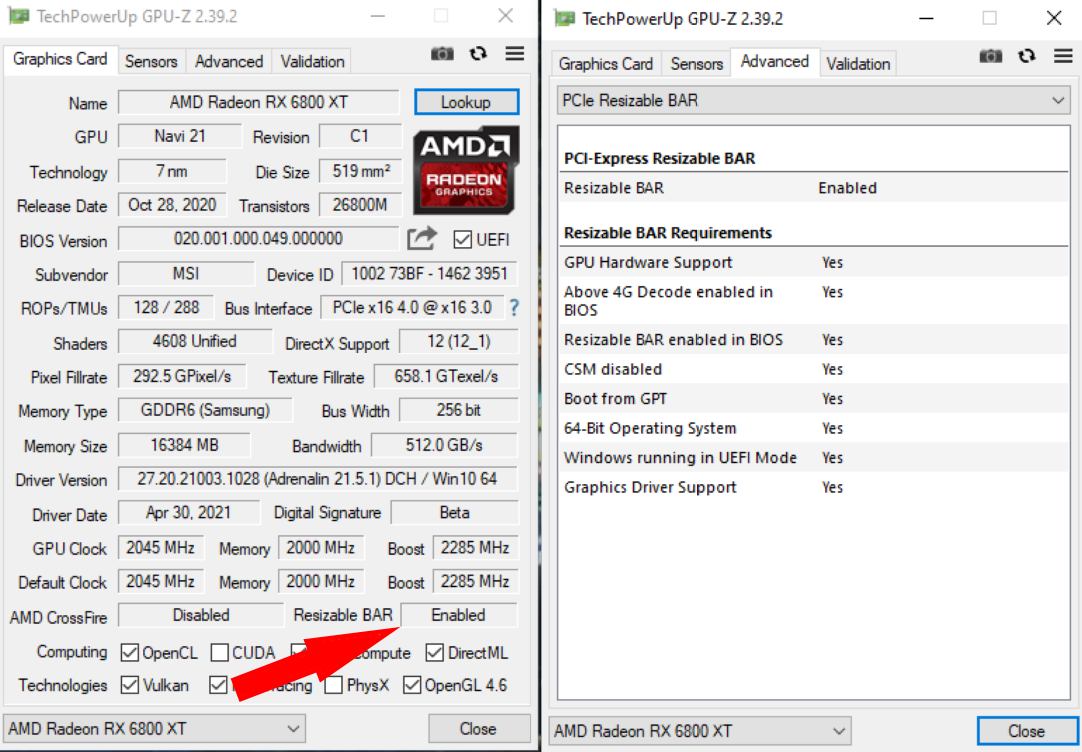
Open GPU-Z again. “Resizable BAR” should now read Enabled. Click on it — every item in the requirements checklist that pops up should show Yes.
If GPU-Z still isn’t reporting ReBar as active even after all of this, try NVIDIA Profile Inspector: under section 5 (“Common”), you can manually force the “reBAR – Feature” flag for the driver.
Once everything checks out, it’s worth firing up a couple of games to confirm you’re actually seeing a performance difference.
Fixing 64-bit BAR Bugs with UEFIPatch (and Whether You Actually Need It)
The plain driver injection above is enough for plenty of boards. But a lot of older consumer motherboards — mostly built around Intel chipsets from the Sandy Bridge through Coffee Lake era, plus HEDT X79 boards — have firmware that mismanages 64-bit BARs. Even after adding the ReBarDxe driver, you might hit one of these symptoms: the BAR size you request gets silently capped, a 64-bit BAR quietly gets downgraded to 32-bit, or the platform runs out of MMIO (memory-mapped I/O) address space and refuses to boot once a large BAR is enabled.
The ReBarUEFI project ships a library of binary patches for exactly these firmware bugs, applied through UEFIPatch (bundled with UEFITool). Which ones apply to you depends entirely on your chipset generation:
| Platform / Chipset | What goes wrong without the patch | What the patch fixes |
|---|---|---|
| Skylake / Kaby Lake / Coffee Lake (100/200/300-series chipsets) |
MMIO space stays capped at 16–32GB no matter what BAR size you request | Frees up the platform’s full 512GB (39-bit) address range |
| Haswell / Broadwell (8/9-series chipsets: H81/B85/Q85/Q87/H87/Z87/H97/Z97, etc.) |
4G Decoding and Resizable BAR don’t work correctly at all — on these boards this isn’t an optional tweak, it’s required | Fixes MMIO allocation (previously stuck at 8–16GB) up to the full 512GB range |
| Sandy / Ivy Bridge (6-series/7-series chipsets, e.g. B75/Z75/H77/Z77) |
MMIO space limited to 16GB | Expands MMIO to the platform’s full 64GB (36-bit) range; some boards also need an accompanying DSDT edit |
| X79 (HEDT) | “Above 4G Decoding” option is missing from the BIOS entirely | Adds the option — but skip this patch if your board (some AliExpress X79 boards, for example) already has working 4G Decoding, since combining both can cause problems on dual-CPU systems |
| Ivy Bridge / Haswell / Broadwell (7/8/9-series chipsets) |
USB 3.0 ports disappear from the BIOS once 4G Decoding is switched on | Restores USB 3.0 functionality with 4G Decoding enabled |
| Any board | ReBarState.exe fails with GetLastError: 5 |
Removes an NVRAM variable whitelist that was blocking the write |
On top of these platform-specific fixes, UEFIPatch also removes the flat <4GB / <16GB / <64GB BAR size caps that show up across most of the boards above, and stops 64-bit BARs from silently being downgraded to 32-bit — both baseline fixes that typically apply alongside whichever MMIO patch matches your chipset.
In practice you don’t need to hand-pick patches: the project’s patches.txt file already lists every patch for every platform, and running UEFIPatch against your BIOS dump applies whatever matches your firmware automatically. A couple of entries — the X79 fix and the Sandy/Ivy Bridge MMIO expansion — need a manual step or extra files, so it’s worth checking the UEFIPatch wiki page for your specific platform before running it.
One thing to watch for: a known bug in UEFITool/UEFIPatch can corrupt a small “pad file” inside the patched module — most commonly reported on ASUS boards. A corrupted pad file means the image won’t boot, so always compare pad files in UEFITool before flashing (the wiki documents an MMTool-based workaround if you run into this).
Whether you need any of this comes down entirely to your board. The popular Chinese LGA2011-3/X99 boards are the clear exception — none of the issues above affect them, so the plain driver injection covered earlier is all you need, with no UEFIPatch step at all.
FAQ & Troubleshooting
Will this work on a PCIe Gen2 system?
It was long assumed this method needed Gen3, but there are confirmed reports of it working on Gen2 hardware (e.g. a Sandy Bridge i5-2500K system).
Can I get Resizable BAR working without modifying the BIOS at all?
On Linux, yes — with 4G Decoding enabled, recent kernels will automatically resize and allocate GPU BARs, and you can add pci=realloc to your kernel command line if the automatic path doesn’t kick in (a faulty DSDT may need patching too). On Windows, there’s currently no known way to get Resizable BAR working without a BIOS modification.
I set an unsupported BAR size and now my system won’t boot — did I brick it?
Almost certainly not. Clear CMOS and Resizable BAR should reset to disabled. In stubborn cases, you may need to physically pull the CMOS battery for a minute.
Do smaller BAR sizes still help, or do I need the full “32” (unlimited) setting?
Even a partial BAR size increase can give a real uplift. As one data point from the ReBarUEFI project: an i5-3470 paired with a driver-patched RX 580 saw up to a 12% FPS increase using just a 2GB BAR — nowhere near “unlimited,” but still a meaningful gain.

Written by
Senior Hardware Specialist proving you don't need top-tier gear to game. Expert in smart upgrades and budget-friendly PC restoration.