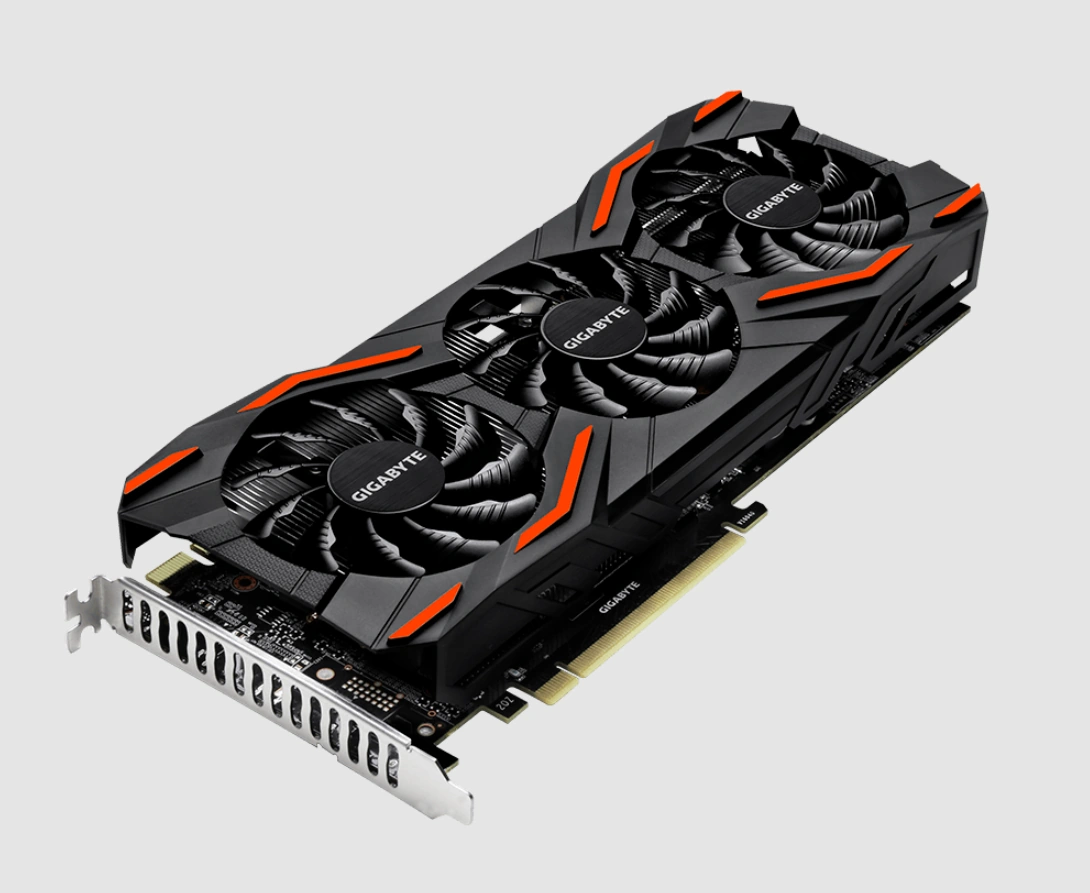
The P104-100 is a mining card NVIDIA released in late 2017 on the GP104, the chip inside the GTX 1070 and GTX 1080. It has the same 1920 CUDA cores as a GTX 1070, slightly higher clocks and faster GDDR5X memory. On paper that’s a GTX 1070, and on the secondhand market it costs a fraction of one.
Out of the box it can’t game: there are no video outputs and the official driver keeps DirectX and OpenGL locked. Those two problems are solved the same way as on the P106-100, with a modified driver and the picture going out through the integrated graphics or a second card. The third problem is harder. The P104-100 talks to the system over PCIe 1.1 x4, about 1 GB/s, and that limit decides how well it plays games far more than the chip does.
This guide covers the driver, what the narrow bus actually costs in games, the unlocks from the hidden 8 GB of memory to PCIe 2.0 and the chances of getting x16, how the card does with local AI models and what to check before buying.
Table of Contents
P104-100 vs GTX 1070: What’s Different
The chip and the core count are the same as on the GTX 1070. NVIDIA even clocked the P104-100 higher and gave it GDDR5X, so in raw compute it’s a little faster. Everything that hurts it in games is outside the chip: the bus, the memory size the BIOS allows and the missing outputs.
| P104-100 | GTX 1070 | |
|---|---|---|
| GPU | GP104-100 | GP104-200 |
| CUDA cores | 1920 | 1920 |
| Clocks (base / boost) | 1607 / 1733 MHz | 1506 / 1683 MHz |
| Memory | 4 GB GDDR5X, 256-bit, 10 Gbps (8 GB on the board) | 8 GB GDDR5, 256-bit, 8 Gbps |
| Memory bandwidth | 320 GB/s | 256 GB/s |
| Bus | PCIe 1.1 x4 (~1 GB/s) | PCIe 3.0 x16 (~16 GB/s) |
| Video outputs | none | DVI, HDMI, 3× DisplayPort |
| NVENC / NVDEC | no (disabled by fuses) | yes |
| Power connector | one 8-pin | one 8-pin |
| Device ID | 10DE:1B87 | 10DE:1B81 |
Every P104-100 carries 8 GB on the board: a 256-bit bus needs eight GDDR5X chips, and those came in 1 GB each. The stock BIOS only enables half of it, and flashing an 8 GB BIOS brings the rest back; see Unlocking 8 GB below.
There’s no hardware video engine at all. Enthusiasts who read the P104-100’s fuses found NVENC and NVDEC switched off in the silicon, so no driver or BIOS brings them back. That means no NVENC streaming or recording, and no hardware video decoding either: let the integrated graphics handle YouTube and media players, and record with Intel Quick Sync or a second card’s encoder.
Other P-Series Mining Cards
| Card | Chip | CUDA cores | Memory (enabled) | On board | PCIe lanes | Closest GeForce |
|---|---|---|---|---|---|---|
| P106-090 | GP106 | 768 | 3 GB GDDR5, 192-bit | 3 GB | x4 | GTX 1050 Ti |
| P106L | GP106 | 768 | 6 GB GDDR5, 192-bit | 6 GB | x4 | GTX 1050 Ti |
| P106-100 | GP106 | 1280 | 6 GB GDDR5, 192-bit | 6 GB | x16 | GTX 1060 6 GB |
| P104-100 | GP104 | 1920 | 4 GB GDDR5X, 256-bit | 8 GB | x4 | GTX 1070 |
| P104-101 | GP104 | 2560 | 4 GB GDDR5, 256-bit | 4 GB | x4 | GTX 1080 with 4 GB |
| P102-100 | GP102 | 3200 | 5 GB GDDR5X, 320-bit | 10 GB | x4 | cut-down GTX 1080 Ti |
| P102-101 | GP102 | 3200 | 10 GB GDDR5, 320-bit | 10 GB | x4 | cut-down GTX 1080 Ti |
- P106-100: the GTX 1060 chip and the only card in the family with all 16 PCIe lanes, which is why it’s the easiest of them to game on.
- P104-101: a rare version with all 2560 CUDA cores of the GTX 1080, but 4 GB of ordinary GDDR5 at 8 Gbps (Device ID 10DE:1BC7). The modified drivers support it, but the PCIe 2.0 unlock described below is written for the P104-100 only.
- P106-090 and P106L: cut-down GP106, closer to a GTX 1050 Ti. The P106L has 6 GB, which makes it easy to mistake for a P106-100.
- P102-100 and P102-101: the GTX 1080 Ti chip on the same four lanes. Rare. The P102-100 has 10 GB on board, and a BIOS flash unlocks all of it, just like on the P104-100.
- CMP 30HX, 40HX, 50HX: the next generation of NVIDIA mining cards, with their own quirks. The best of them for gaming has its own CMP 40HX guide, and the cheaper GTX 1660 Super-class card has its own CMP 30HX guide.
What You Need to Game on a P104-100
Three things: a device that sends the picture to your monitor, Windows 10 or 11, and a modified driver. The P104-100 renders the frame, and the integrated graphics or a second card displays it, just like a laptop with a discrete GPU.
Windows 11 is the better choice. It lets you pick the GPU for every game in the system settings, and that works even with a second discrete card. In Windows 10 you choose through the NVIDIA Control Panel, and that only works reliably with integrated graphics.
On Windows 10, try select_default_GPU. This small open-source batch script (GitHub) fixes the most common case of a game running on the wrong GPU. Its first option turns on the default high-performance GPU and per-app GPU settings that Windows 10 has but hides. The second writes the mining card into the registry as the default high-performance DirectX adapter. The third makes OpenGL programs use the NVIDIA driver instead of the integrated graphics; it needs administrator rights and a reboot, and doesn’t work while Microsoft’s OpenCL and OpenGL Compatibility Pack is installed. Owners report that it got Windows to accept the mining card as the high-performance GPU and moved OpenGL apps like FurMark onto it, though a few older games still started on the integrated graphics.
Which Platforms Work
| Platform | Verdict | Notes |
|---|---|---|
| Intel 6th–14th gen with iGPU (LGA1151, 1200, 1700) | best option | current iGPU drivers, DirectX 12 works |
| Intel Haswell (LGA1150) | works | DirectX 12 only with an older Intel driver, see Pitfalls |
| Intel Ivy Bridge (LGA1155) | at your own risk | Windows 11 recommended, the iGPU has no DirectX 12 |
| Intel Sandy Bridge (LGA1155) | not recommended | can be made to work, with serious limitations |
| AMD AM4 with an APU (Ryzen G) | works | the x8 graphics slot on some APUs makes no difference, the card only uses four lanes |
| X79, X99 and any CPU without iGPU | works with a second card | see “No Integrated Graphics” below |
A few more things to check:
- Any slot with four lanes is enough. The card loses nothing in a second x16 slot that’s wired as x4, or in a PCIe 2.0 x4 slot from the chipset.
- Not an x1 riser. In an x1 slot the bus drops to a quarter, about 0.2 GB/s, and games become unplayable.
- Your CPU needs AVX. Pentium and Celeron chips up to 10th gen (G4560, G5400, G6400 and the like) and first-gen Core i3/i5/i7 lack it, and modern games either refuse to start or take forever to compile shaders.
- Power. One 8-pin connector (the MSI P104-100 MINER has 6+8). A quality 450–500 W power supply is enough.
P104-100 Driver
The official NVIDIA driver installs on the P104-100, but only enables CUDA: DirectX and OpenGL are locked for this card. The lock is purely in software, and there are two ways around it.
- NVIDIA-patcher by dartraiden (GitHub) is the most transparent option. It changes a few bytes in the official driver files, it’s open source and well documented. The patched files are signed with a self-made certificate, so some antivirus programs flag them and anti-cheat systems often refuse to load them.
- RainCandy Technology Special Edition (GitHub) is a ready-made installer built on the same patcher plus CYX-patch. It adds its root certificate by itself and walks you through errors. It’s signed with leaked certificates, which the author states openly. Right now many online games with anti-cheat run on it, unlike on NVIDIA-patcher: RainCandy builds have had experimental Easy Anti-Cheat support since May 29, 2026. Owners still report problems in some EAC games, though, and this can change at any moment; in the worst case, the account gets banned.
Both support the P104-100 and the P104-101.
Which Version to Install
The version depends on what drives your monitor. Data from the patcher’s Windows guide as of November 2026:
| Display output through | Driver version |
|---|---|
| Intel or AMD integrated graphics | 582.78 |
| AMD graphics card | 582.78 |
| NVIDIA GTX 900/10 series, GT 1030 | 582.78 |
| NVIDIA GTX 16, RTX and newer | 581.94 |
| NVIDIA Kepler (GT 710/730) | 472.12 |
| Two P104-100 in SLI | 446.14 only |
The 580 branch is the last one for Pascal: from 590 onwards NVIDIA dropped these chips, so the P104-100 gets only fixes, not new game optimizations.
Step-by-Step Installation
- Install the driver for your integrated graphics (or second card) and make sure the picture comes through it.
- Download the official NVIDIA driver of the right version, the matching patched files and DDU.
- Unpack the driver with 7-Zip or the latest WinRAR (older versions fail on the newest NVIDIA packages) and replace the original files with the patched ones. The versions must match exactly.
- Disconnect from the internet, or Windows Update will slip in its own driver. Remove the old NVIDIA driver with DDU and reboot.
- Run
setup.exefrom the unpacked folder, choose the graphics driver only, then reconnect. - Set the P104-100 as the high-performance GPU: in Windows 11 under Settings → System → Display → Graphics, in Windows 10 in the NVIDIA Control Panel → Manage 3D settings.
The monitor stays plugged into the integrated graphics or the second card the whole time. Skip the NVIDIA App and GeForce Experience. Without NVENC their recording and overlay features don’t work on this card anyway, and they tend to pull in an official driver over the patched one.
If the Driver Won’t Install
- The installer doesn’t see the card or crashes. Install through Device Manager instead: Update driver → Browse my computer → point it to the unpacked driver folder.
- Code 43. Usually the driver and the patch don’t match, the certificate wasn’t added, or Windows Update replaced the patched driver. Remove everything with DDU and reinstall offline. If the error stays, try another slot or another PC: a Code 43 that follows the card everywhere can mean the card itself is faulty.
- Code 52 with an older RainCandy build. One of the certificates used in RainCandy builds from 2024 and earlier has been revoked through Windows Update. Install a current build or pick the other signature mode in the installer.
- “This driver has been blocked” (nvlddmkm.sys). This is the Windows Driver Policy. Since the April 2026 update, Windows 11 24H2 and newer stop trusting kernel drivers signed through the old cross-signed program, and modified NVIDIA drivers rely on exactly that kind of signature. At first the policy only logs such drivers, and each time one loads the countdown restarts, so a PC that already runs a modified driver usually stays in this mode. A PC that goes about 250 hours and a few reboots without one switches to enforcement, and a modified driver installed after that is blocked. Microsoft’s own fix: on a PC with the July 2026 update or newer, open Terminal (Admin), run
CiTool.exe --remove-policy "{8F9CB695-5D48-48D6-A329-7202B44607E3}"and reboot. CiTool is the Windows tool that manages code integrity policies, and this command removes the one that blocks the driver. Without the July update, you have to turn off Secure Boot and delete the policy file by hand; the steps are on Microsoft’s page. Keep in mind that this lifts the check for every old driver on the system, not just NVIDIA’s. - The antivirus deleted files. Add
C:\Windows\System32\DriverStoreto its exclusions and reinstall. - Don’t use the NVENC-prefixed build. The P104-100 has no encoder, and with that build apps that try NVENC crash.
No Integrated Graphics: Second GPU, X79 and X99
The P104-100 works fine on X79 and X99, but Xeon E5 chips have no integrated graphics, so a second card has to send the picture to the monitor. The same goes for Intel F-series CPUs and Ryzen without a G.
Which Card to Use for Display
Two NVIDIA cards in one system can only share a single driver version, and it’s set by the oldest of them. That’s the main rule: the display card must not drag the P104-100 down to an old driver.
- AMD (RX 550 or similar) is the most trouble-free option. Drivers from two vendors don’t get in each other’s way, and the P104-100 gets the fresh 582.78.
- GT 1030 or another Pascal/Maxwell card also gets 582.78, but conflicts between two NVIDIA cards do happen.
- GT 710/730 (Kepler) are the most common “spare” cards and the worst choice. They pull the whole system down to driver 472.12 (RainCandy recommends 475.14), and some modern games won’t start on it. Older Fermi cards like the GT 610 aren’t supported by the patcher at all.
- The display card needs DirectX 12 in hardware. Kepler cards like the GTX 650 Ti report DirectX 12 only on paper (feature level 11_0), and with one of them driving the display, DirectX 12 games fail even though the P104-100 supports it.
- Old Radeons need at least driver 16.2.1, which means HD 5000 series or newer. Such a card is fine for DirectX 11 games; for DirectX 12 you need GCN (HD 7000 or newer).
- Two NVIDIA cards and Windows won’t let you choose. Set EnableMsHybrid in the registry: 1 on one card and 2 on the other, then reboot; one becomes the high-performance GPU and the other the power-saving one (details in issue #57), or let select_default_GPU set the high-performance adapter for you.
Which Slot to Use
The P104-100 can take the second slot and leave the first one to the display card.
The display card receives the finished frames over its own bus, about 0.5 GB/s at 1080p and 60 FPS, which is all a PCIe 2.0 x1 slot can carry. A riser in an x1 slot caps 1080p at roughly 40 FPS, so give the display card at least four lanes. Most X99 boards have enough slots; check our Chinese X99 motherboard table.
Bottom line for X99: add the price of a second card to the P104-100. It makes sense if a suitable card is already sitting in a drawer; otherwise compare the total with a used GTX 1070.
PCIe 1.1 x4: Why the P104-100 Falls Behind a GTX 1070
The GTX 1070 talks to the system over PCIe 3.0 x16, about 16 GB/s. The P104-100 gets PCIe 1.1 x4, a nominal 1 GB/s, and in practice about 0.8 GB/s in each direction. That’s a sixteenth of the GTX 1070 and a quarter of the P106-100, which keeps all 16 lanes.
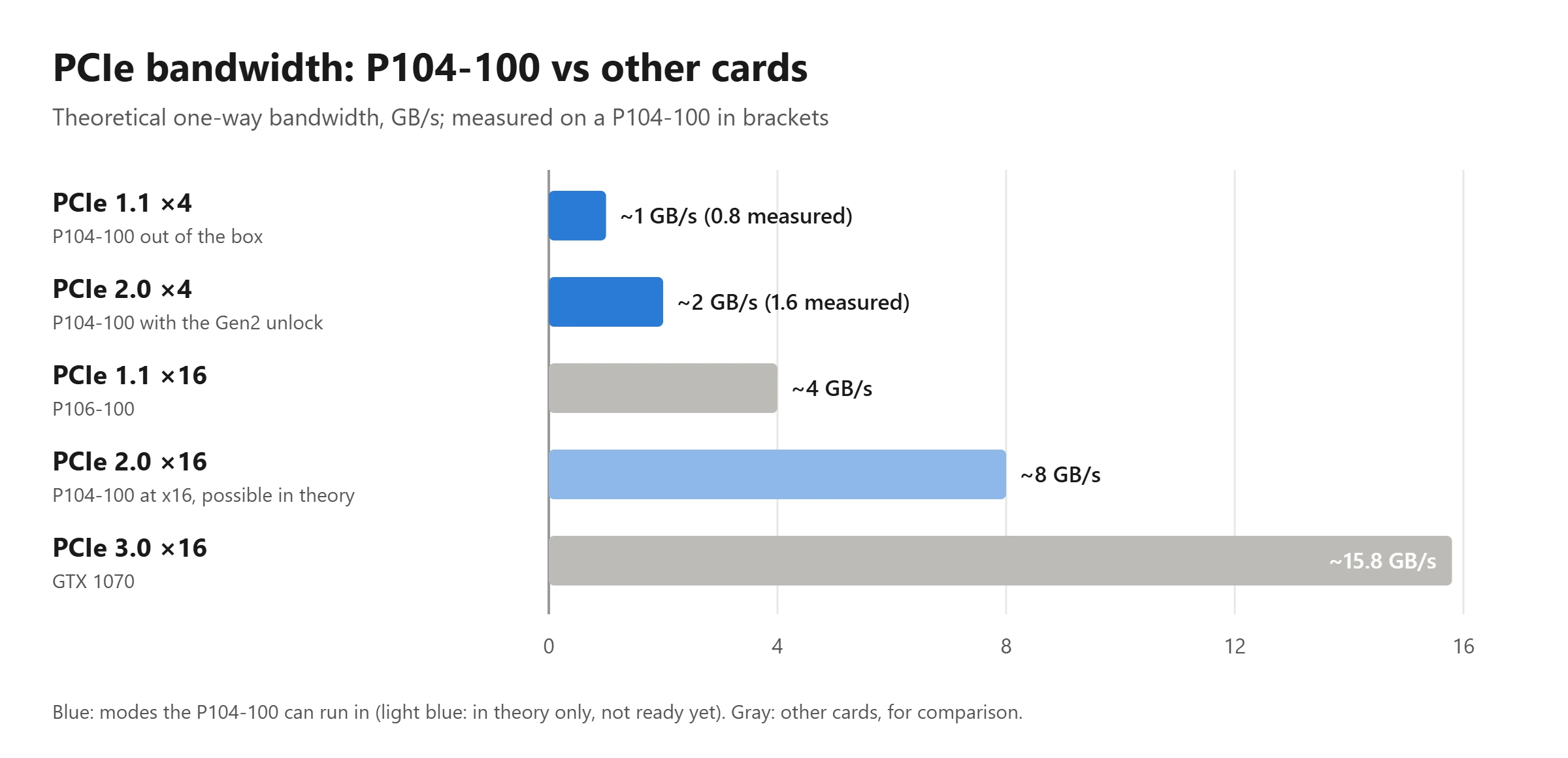
The bus carries two kinds of traffic, and both hit the P104-100 hard:
- Finished frames going out. The card has no outputs, so every frame travels back over the bus to the integrated graphics or the display card. A 1080p frame is about 8.3 MB, so 60 FPS already takes 0.5 GB/s, more than half of what the link can carry. At about 100 FPS in 1080p the link is full, and at 1440p the ceiling is under 60 FPS even in theory.
- Data coming in. Textures and geometry that the game streams in while you play arrive at the same 0.8 GB/s. When a game loads a new area or streams textures constantly, as most Unreal Engine 5 games do, the card waits, and you get stutters and low 1% lows.
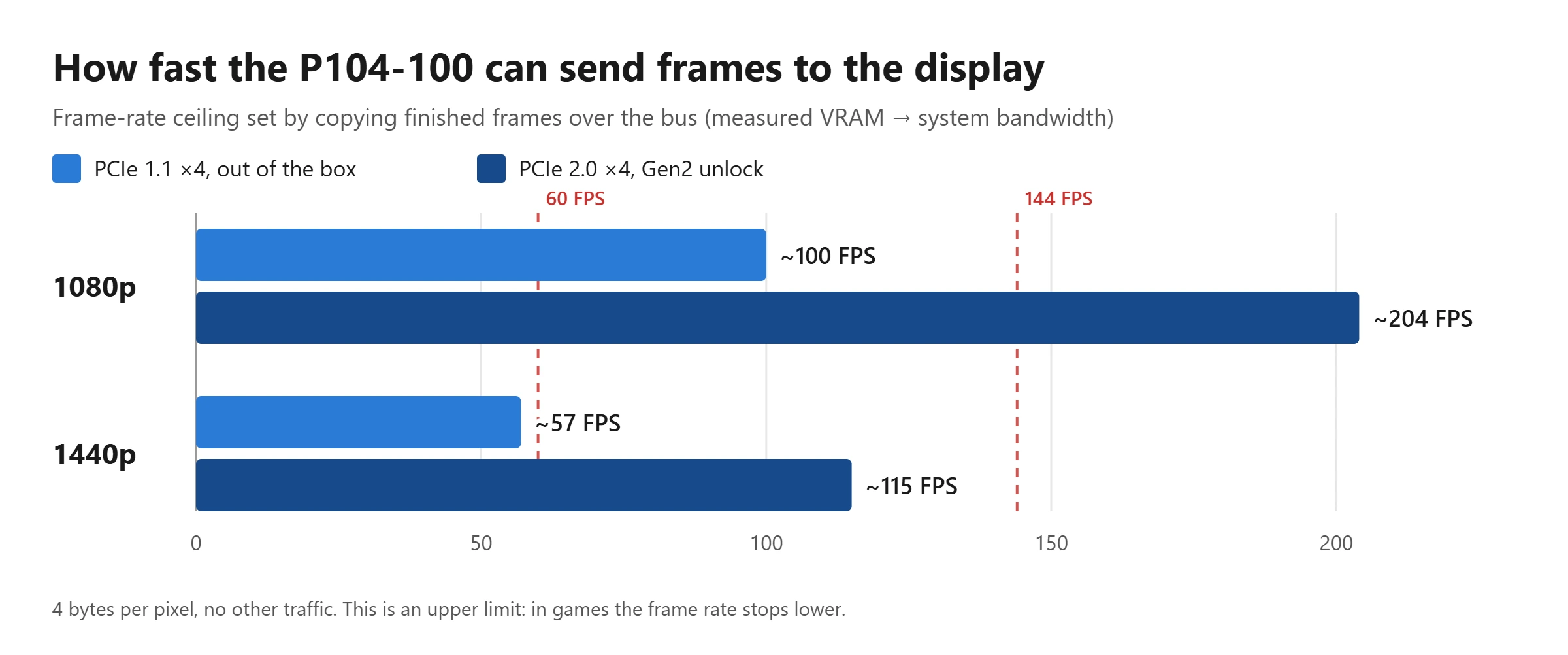
Out of the box, at PCIe 1.1 x4, this means:
- Heavy games at 1080p and around 60 FPS are where the P104-100 does best. Owners measure it roughly 10–15% behind a GTX 1070 in such cases, which still puts it well ahead of a P106-100.
- High frame rates are out of reach. Esports titles that a GTX 1070 runs at 150+ FPS stop around 90 FPS, and here the P106-100 with its wider bus can be just as fast.
- Games that stream a lot of data (open worlds, Unreal Engine 5, PUBG) can fall to 30 FPS and below with constant stutters, sometimes to GTX 1650 level.
With the PCIe 2.0 unlock described below, the picture changes noticeably. The frame ceiling doubles to about 200 FPS at 1080p and 115 FPS at 1440p, so high frame rates and 1440p at 60 FPS come within reach, and textures load twice as fast. The bus still carries only about half of what the P106-100 gets, though, so games that stream a lot of data stay the P104-100’s weak spot. Even with this unlock, for most players the P104-100 remains a less attractive card than the P106-100: a bit more raw power, but more stutter in data-heavy games and a lot more tinkering.
You can see the bus mode in GPU-Z, on the Bus Interface line. A healthy P104-100 shows “PCIe x4 1.1 @ x4 1.1”. If it says x1 after the @, the card is in an x1 slot or riser.
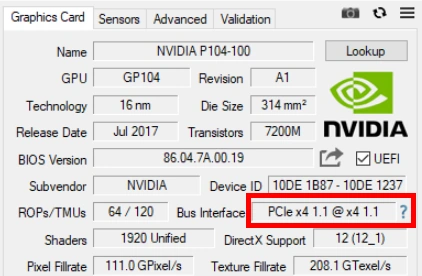
No BIOS will change the bus. Firmware that promises to “unlock PCIe lanes” or “enable HDMI” on a P104-100 is fake and can brick the card. PCIe 3.0 is disabled by a fuse in the chip, and the four lanes are set by the board when the card powers on. What can be changed is covered in the next section.
Unlocking the P104-100, From Easy to Hard
There are three upgrades, and each one is riskier than the last. A BIOS flash enables the full 8 GB of memory and is the one nearly every owner should do. A Windows tool doubles the bus speed without opening the card. All 16 PCIe lanes are possible in theory, but not something you can count on yet.
Step 1: Unlock 8 GB of Memory
For gaming this matters more than it does on a normal card. When a game runs out of video memory, the overflow lives in system RAM and has to cross the slow bus, so on a 4 GB P104-100 a heavy game turns into a stutter fest much sooner than on a 4 GB GeForce. Flashing a BIOS from an 8 GB P104-100 enables the other half.
- In GPU-Z, check the memory size (4096 MB) and save the original BIOS with the button next to the BIOS version. Keep the file somewhere safe.
- Download NVFlash and an 8 GB P104-100 BIOS from the TechPowerUp VBIOS database. Owners most often use version 86.04.7A.00.19, listed there under several brands.
- From an administrator command prompt, turn off write protection with
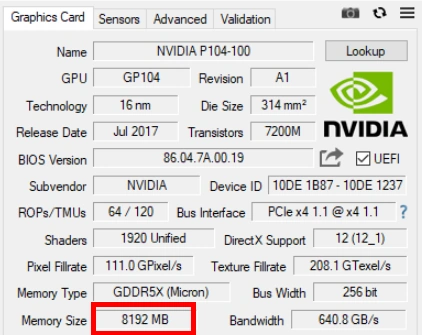
nvflash --protectoff, then flash withnvflash -6 p104_8gb.rom. The-6option lets it write a BIOS with a different subsystem ID. - Reboot and check GPU-Z: it should show 8192 MB. Run a full pass of memtest_vulkan to make sure the second half of the memory is healthy.
The risks are real. A BIOS from another vendor can change fan behavior, and some owners report a power limit that throttles the card hard with a particular BIOS: if the card is slow after flashing, try a different 8 GB file. If the card stops starting, you can flash the saved original back from a second GPU, or with an SPI programmer as a last resort.
Step 2: PCIe 2.0 Unlock, Twice the Bandwidth Without Soldering
In October 2026 Chinese enthusiasts published a Windows tool that moves the P104-100 from PCIe 1.1 x4 to PCIe 2.0 x4 by rewriting the card’s registers: p104-gen2-unlock, with the current version and documentation in p104-unlock-v3. On their card the measured bandwidth doubled: 0.78 → 1.55 GB/s into the card and 0.84 → 1.69 GB/s out of it. Nothing is flashed: the changes live in the card’s registers and disappear when the power is cut.
- Only for the P104-100 (Device ID 10DE:1B87), on Windows 10 or 11 x64 with administrator rights. It was tested in a PCIe slot wired to the CPU; the slot must support at least PCIe 2.0.
- Two builds. The manual one works while its window stays open. The automatic one registers a scheduled task that applies the unlock after boot and keeps retrying every minute; after a cold start the first attempt often fails, so it can take 2–4 minutes to kick in. Check the result with the included status script.
- A background process stays running. The NVIDIA driver drops the link back to PCIe 1.1 every time CUDA starts, so a watchdog rewrites the setting every 20 ms. GPU-Z may flicker between 1.1 and 2.0 because of this; that’s its sampling, not an unstable link.
- Vulnerable kernel drivers. To reach the registers, the tool loads the WinRing0 and ThrottleStop drivers. Antivirus software will flag them, Windows’ vulnerable driver blocklist may block them, and anti-cheat systems react badly: the authors warn about bans, especially with Tencent ACE.
- The card can drop off the bus if link training fails. A full power-off brings it back. Don’t experiment while the P104-100 is your only working display path.
The authors haven’t published FPS measurements, only that games show fewer drops.
Step 3: PCIe x16, Possible in Theory
The GP104 chip itself supports 16 lanes, but on the P104-100 only four are connected. So PCIe 2.0 x16 is possible in theory, but right now you most likely won’t get it.
Enthusiasts in China are working on it and trying several routes, from soldering in the parts missing next to the PCIe connector to re-enabling the lanes that get switched off when the card powers on. The first successes have been reported, but so far it’s all betas and messages from the developers, with no solid proof beyond the video below. Until there’s a proper release and independent tests, treat it as an experiment, not as a reason to buy the card.
If it does work out, PCIe 2.0 x16 gives about 8 GB/s, twice what the P106-100 gets and half of a GTX 1070, which would bring the P104-100 close to a real GTX 1070. The video compares the same card at PCIe 1.1 x4, 2.0 x4 and 2.0 x16:

Pitfalls
Most of these come from the “one card renders, another displays” setup and the modified drivers.
- DirectX 12 on Haswell graphics (LGA1150). Intel disabled DirectX 12 on Haswell iGPUs starting with driver 15.40.44.5107, and with the iGPU displaying the frame, DirectX 12 games won’t start on the P104-100 either. Roll back to 15.40.42.5063 or older. The price is an unpatched vulnerability, and older drivers also have Quick Sync glitches.
- Crashes and black screens. On Windows 10, turn off Hardware-accelerated GPU scheduling (Settings → System → Display → Graphics) and reboot; on Windows 11, also try turning off Optimizations for windowed games in the same section. This often clears conflicts between the patched driver and Windows.
- Exclusive fullscreen. Some games hang or fall back to the integrated graphics in this mode. Borderless windowed fixes it.
- G-Sync and refresh rate. The integrated graphics display the frame, so G-Sync doesn’t work, and on older platforms the iGPU output may not go above 60 Hz at all. That depends on the CPU generation and the video outputs on the board, so check them if you have a high-refresh monitor.
- OpenGL games run on the iGPU. Minecraft and other OpenGL apps often ignore the GPU setting. A registry fix helps: in
HKLM\SYSTEM\CurrentControlSet\Control\Class\{4d36e968-e325-11ce-bfc1-08002be10318}, find the subkeys of the NVIDIA card and the Intel iGPU (check DriverDesc), and copy the NVIDIA values ofOpenGLDriverNameandOpenGLDriverNameWoWinto the Intel subkey. Reboot. Updating the Intel driver undoes the change. The third option of select_default_GPU (see above) does a similar job automatically. - Anti-cheat. Modified drivers are signed with certificates that anti-cheat systems may not trust, so games with EAC, BattlEye, Vanguard or FACEIT can refuse the card or, in the worst case, ban the account. For now RainCandy fares much better here than NVIDIA-patcher. The PCIe unlock tools add their own risk on top.
- Driver keeps changing back. If the card shows up as a plain P104-100 again and disappears from the Graphics settings, Windows Update has replaced the patched driver. Turn off driver updates.
- No guarantees. Some board and CPU combinations misbehave in ways nobody can predict: on certain motherboards, for example, the integrated graphics stop working once the mining card is installed. Buy where the card can be returned if you can.
P104-100 Gaming Performance
A side-by-side test on one platform shows the bus effect best. Here the P104-100 runs against a P106-100, a GTX 1060 and an RX 480 on a Xeon E3-1245 v5 (roughly a Core i7-6700) at 1080p, in GTA V, Shadow of the Tomb Raider, Far Cry 5, Metro Exodus, The Witcher 3 and Cyberpunk 2077:

A $121 gaming PC. A used Core i5-4460 on an MSI B85 board with an 8 GB MSI P104-100, tested in ten games from GTA V and Red Dead Redemption 2 to CS2 and Black Myth: Wukong. Frame rates are capped at 60 to keep the card cool, which suits this card well.

P104-100 for AI and Local LLMs
For AI work the P104-100 is a much simpler card than for games. Compute is exactly what it was built for, so the official NVIDIA driver works as is, on Windows and on Linux, with no patch and no display tricks. The narrow bus matters much less too: once a model is loaded into video memory, generating text hardly touches PCIe, and loading an 8 GB model at 0.8 GB/s takes about ten seconds.
- Speed. In the llama.cpp community benchmark (Llama 2 7B, Q4_0, Vulkan backend) the P104-100 generates about 46–49 tokens per second and reads prompts at about 310–325 tokens per second. That’s a little faster than a GTX 1070 Ti in the same test: generation speed depends mostly on memory bandwidth, and here the GDDR5X helps.
- Unlock the 8 GB first. With 4 GB you’re limited to small 3–4B models. With 8 GB, 7–8B models in 4-bit quantization fit with room for context.
- Pick the right build. CUDA 13 dropped Pascal, so software built against it won’t see the card. On Windows, take the CUDA 12.4 or Vulkan build of llama.cpp. Ollama still supports compute capability 6.1, which is what the P104-100 has, and needs driver 570 or newer.
- Several cards. llama.cpp can split a larger model by layers across several P104-100s. Little data crosses the bus per token in this mode, which is why old mining rigs get a second life as LLM boxes, though loading the model takes longer.
- Image generation is weaker. Pascal has no tensor cores, and half-precision math on the P104-100 runs at a tiny fraction of full speed, so Stable Diffusion has to run in FP32: slower and hungrier for memory. SD 1.5 is fine, SDXL is slow and tight on 8 GB. PyTorch builds for Pascal only exist in the cu126 variant, and PyTorch 2.14 is the last version to ship them, so tools like ComfyUI need that older build.
Vendor Differences and Buying Used
All P104-100s run the same reference clocks (1607/1733 MHz, 10 Gbps memory) on near-identical boards, so performance doesn’t depend on the brand. They differ in length, cooling and power connectors.
| Vendor | Length | Notes |
|---|---|---|
| ASUS | 270 mm | — |
| Gigabyte (GV-NP104D5X-4G) | 280 mm | the longest P104-100; check that it fits |
| Inno3D Twin X2 | 270 mm | dual-fan cooler |
| MSI P104-100 MINER | — | 6+8-pin power instead of a single 8-pin |
| Palit | 252 mm | the shortest in this list |
Colorful, EVGA and GALAX also made P104-100s.
Noisy fans. Mining cards often keep their fans high even at idle, and MSI Afterburner can’t always lower them. A BIOS from another vendor’s P104-100 sometimes helps, but carries some risk. There are two safer options. You can plug the card’s fans into a motherboard fan header through an adapter from the small GPU fan connector to a standard 4-pin PWM plug, and then set the curve in the BIOS or in FanControl. Or you can replace the fans themselves: quiet 92 mm case fans zip-tied to the heatsink are a common cheap mod.
What to Check When Buying
- Price. The card only makes sense while it’s clearly cheaper than a used GTX 1070. If the price gap is small, take the 1070: it has outputs, NVENC and a full bus.
- Device ID. In GPU-Z the P104-100 is 10DE:1B87. 10DE:1BC7 is the rarer P104-101.
- Memory. Some cards are sold already flashed to 8 GB, which saves you a step. Either way, run memtest_vulkan after buying.
- Bus. GPU-Z should show x4 1.1. A seller’s screenshot showing x16 or PCIe 3.0 on a P104-100 is a reason to ask questions.
- Fans and thermal pads are usually worn after years of mining. Budget for maintenance.
- The seller’s BIOS. Mining cards often run modified memory timings or undervolts. If the card is unstable, flash a stock BIOS from the TechPowerUp database.
P104-100 or P106-100?
For most people the P106-100 is the better buy, and that holds even against a P104-100 with the PCIe 2.0 unlock. The P106-100 works well out of the box: 16 lanes, 6 GB of memory, no BIOS flashing and no unlock tools with their anti-cheat risks. The P104-100 would only clearly win at PCIe 2.0 x16, and that isn’t realistic yet:
- Stock, at PCIe 1.1 x4, it’s faster than the P106-100 in heavy games at 1080p and 60 FPS, but can lose to it at high frame rates and in games that stream a lot of data.
- With the 8 GB BIOS and the PCIe 2.0 unlock it gets faster in heavy games, but still has only about half the P106-100’s bus bandwidth, stutters more in data-heavy titles and depends on a tool that anti-cheat systems dislike. Overall, the P106-100 is still the more sensible choice.
- At PCIe 2.0 x16 it should come close to a GTX 1070 and leave the P106-100 well behind, if that ever becomes practical.
Verdict: Who Should Buy a P104-100
- Buy it if you enjoy tinkering, play heavy single-player games at 1080p, have integrated graphics or a spare display card, and are ready to flash the BIOS to 8 GB and run the PCIe 2.0 unlock. Even then it’s a hobby card rather than a better P106-100.
- Don’t count on PCIe x16 yet. It would bring the card close to a GTX 1070, but for now it’s an experiment.
- Take a P106-100 instead if you want a card that simply works.
- Skip it for streaming (no NVENC) and for online games with strict anti-cheat if you plan to use the unlock tools.
- Consider it for local LLMs even without gaming plans: with 8 GB unlocked it runs 7–8B models quickly on the official driver.
- Keep in mind that the 580 driver branch is the last one for Pascal. This is a card for the games that are already out.
Useful Links
- NVIDIA-patcher on GitHub and its Windows guide: the patch and the driver version table.
- RainCandy Technology Special Edition: a ready-made modified driver with an installer.
- select_default_GPU: sets the default GPU for DirectX and OpenGL on Windows 10.
- p104-gen2-unlock and p104-unlock-v3: the PCIe 2.0 unlock and its documentation.
- Display Driver Uninstaller (DDU): clean removal of the old driver.
- NVFlash and the TechPowerUp VBIOS database: BIOS flashing and original BIOS files.
- memtest_vulkan: a quick video memory test.
- Microsoft: The Windows Driver Policy: why Windows 11 blocks modified drivers and how to turn the policy off.
- Intel: DirectX 12 on 4th gen graphics: why DirectX 12 disappeared on Haswell.

Written by
Senior Hardware Specialist proving you don't need top-tier gear to game. Expert in smart upgrades and budget-friendly PC restoration.