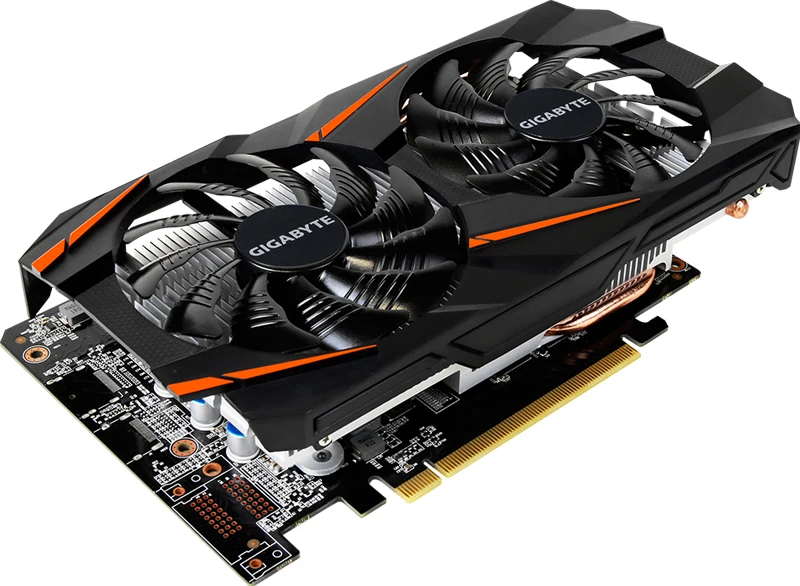
The P106-100 is a GTX 1060 6 GB that NVIDIA built for crypto mining back in 2017. Same GP106 chip, same 1280 CUDA cores, same 6 GB of GDDR5. What it lacks is everything a gamer needs out of the box: there are no video outputs, the bus runs in PCIe 1.1 mode, and the official driver won’t enable DirectX or OpenGL on it.
All of that can be worked around. With a modified driver and something to send the picture to your monitor (the CPU’s integrated graphics or a second cheap card), the P106-100 runs games just like a GTX 1060 and ends up only about 7–12% behind the real thing. No soldering and no BIOS flashing are usually needed. And on the secondhand market it costs a fraction of what a GTX 1060 goes for.
This guide covers what your platform needs, which driver to install, how to live without integrated graphics on X79 and X99, what to check before buying, and how the card actually performs in games.
Table of Contents
P106-100 vs GTX 1060 6 GB: What’s Different
Everything that matters for rendering is identical. The differences are the bus, the outputs and the video encoder. Once the modified driver is installed, games see it as an ordinary GTX 1060-class GeForce with DirectX and OpenGL.
| P106-100 | GTX 1060 6 GB | |
|---|---|---|
| GPU | GP106 | GP106 |
| CUDA cores | 1280 | 1280 |
| Clocks (base / boost) | 1506 / 1708 MHz | 1506 / 1708 MHz |
| Memory | 6 GB GDDR5, 192-bit, 8 Gbps | 6 GB GDDR5, 192-bit, 8 Gbps |
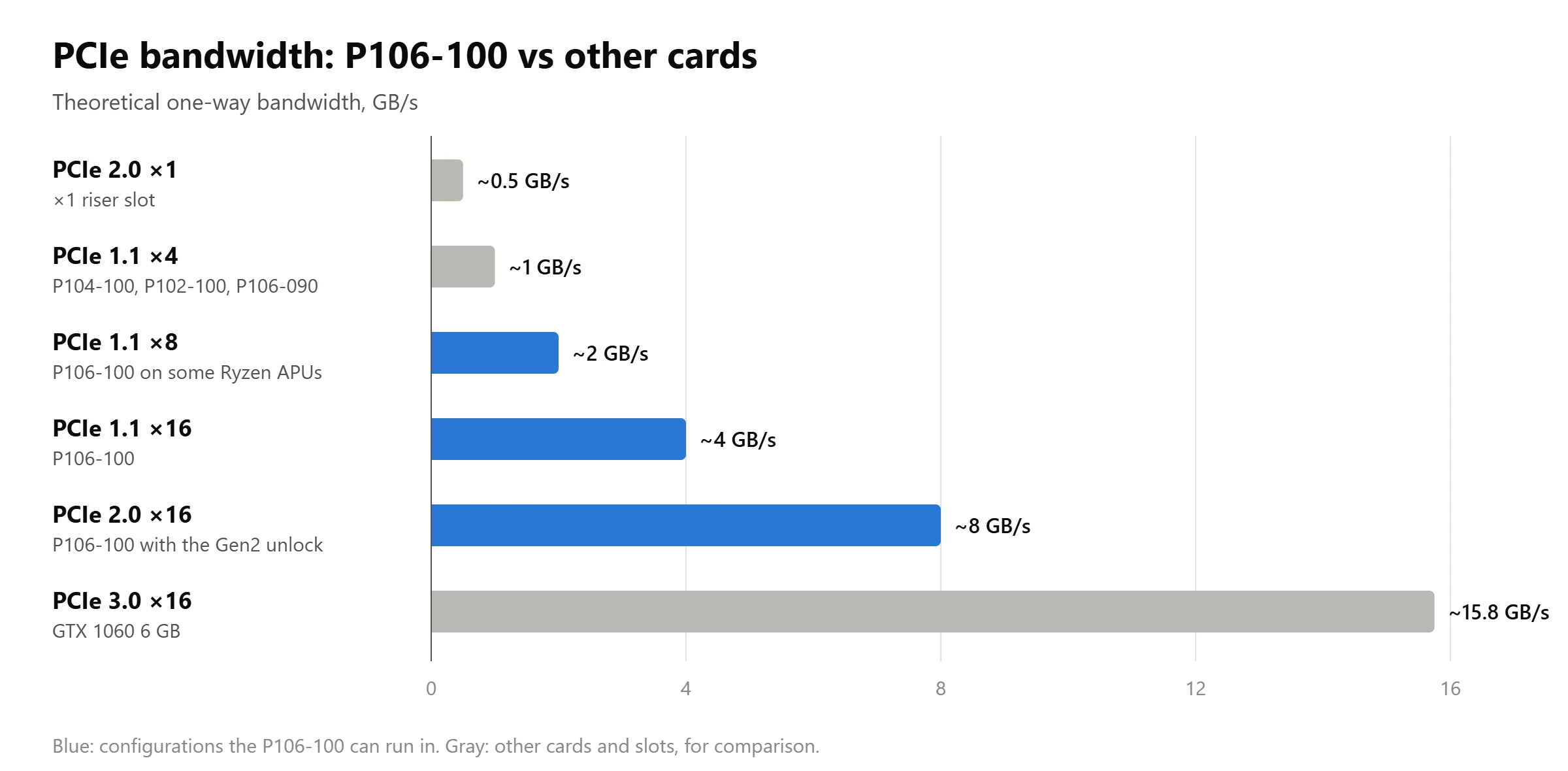
| Bus | PCIe 1.1 x16 (~4 GB/s) | PCIe 3.0 x16 (~16 GB/s) |
| Video outputs | none | DVI, HDMI, 3× DisplayPort |
| NVENC | no | yes |
| Power | 120 W, one 6-pin | 120 W, one 6-pin |
| Device ID | 10DE:1C07 | 10DE:1C03 |
Board length and cooling vary from vendor to vendor (see below). There are also rare P106-100 versions with video outputs, and some cards have the bus cut down to x4.
Most people don’t notice the missing NVENC until they try to stream: hardware recording and streaming through NVIDIA’s encoder won’t work. Use Intel Quick Sync on the integrated graphics or the encoder of a second card instead.
On the P104-100, enthusiasts have read the chip’s fuses and found NVENC and NVDEC disabled right in the silicon, so no driver or BIOS will bring them back. The P106-100 almost certainly has the same lock, which also means no hardware video decoding: let the integrated graphics handle YouTube and media players.
Other P-Series Mining Cards
| Card | Chip | CUDA cores | Memory (enabled) | On board | PCIe lanes | Closest GeForce |
|---|---|---|---|---|---|---|
| P106-090 | GP106 | 768 | 3 GB GDDR5, 192-bit | 3 GB | x4 | GTX 1050 Ti |
| P106L | GP106 | 768 | 6 GB GDDR5, 192-bit | 6 GB | x4 | GTX 1050 Ti |
| P106-100 | GP106 | 1280 | 6 GB GDDR5, 192-bit | 6 GB | x16 | GTX 1060 6 GB |
| P104-100 | GP104 | 1920 | 4 GB GDDR5X, 256-bit | 8 GB | x4 | GTX 1070 |
| P102-100 | GP102 | 3200 | 5 GB GDDR5X, 320-bit | 10 GB | x4 | cut-down GTX 1080 Ti |
| P102-101 | GP102 | 3200 | 10 GB GDDR5, 320-bit | 10 GB | x4 | cut-down GTX 1080 Ti |
The P106-100 is the only card in the family with all 16 PCIe lanes. The rest have four, so in games they fall well behind the GeForce cards built on the same chips.
- P106-090: a cut-down GP106, closer to a GTX 1050 Ti than to a 1060.
- P106L: a factory P106-090 with 6 GB (Manli, for example). The 6 GB makes it easy to mistake for a P106-100, but it’s the same weaker card.
- P104-100: the GTX 1070/1080 chip; every card has 8 GB on board, and a BIOS flash unlocks all of it. More in our P104-100 gaming guide.
- P102-100 and P102-101: the GTX 1080 Ti chip. Rare. The P102-100 has 10 GB on board, and a BIOS flash unlocks all of it.
- CMP 30HX, 40HX, 50HX: the next generation of NVIDIA mining cards, with their own quirks. The best of them for gaming has its own CMP 40HX guide, and the cheaper GTX 1660 Super-class card is in our CMP 30HX guide: once soldered, it runs about a quarter faster than a P106-100.
What You Need to Game on a P106-100
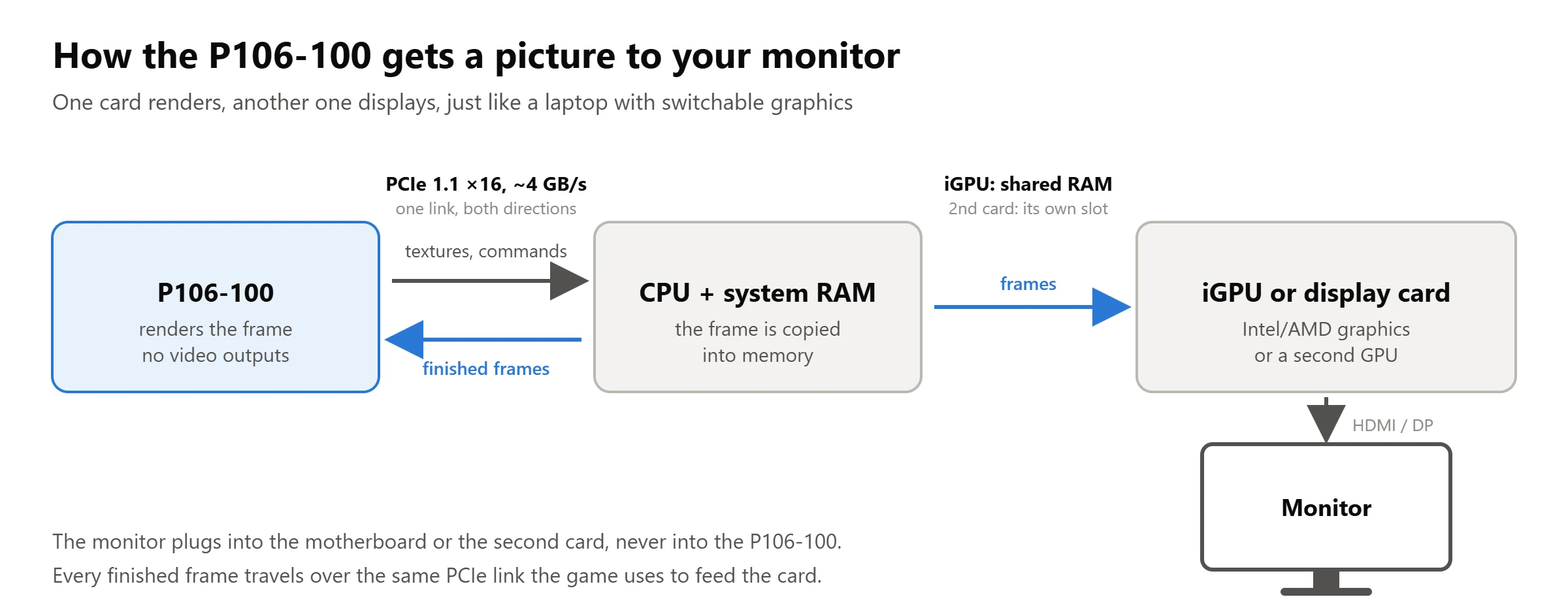
Three things: a device that sends the picture to your monitor, Windows 10 or 11, and a modified driver. The P106-100 renders the frame, and the integrated graphics or a second card displays it, just like a laptop with a discrete GPU.
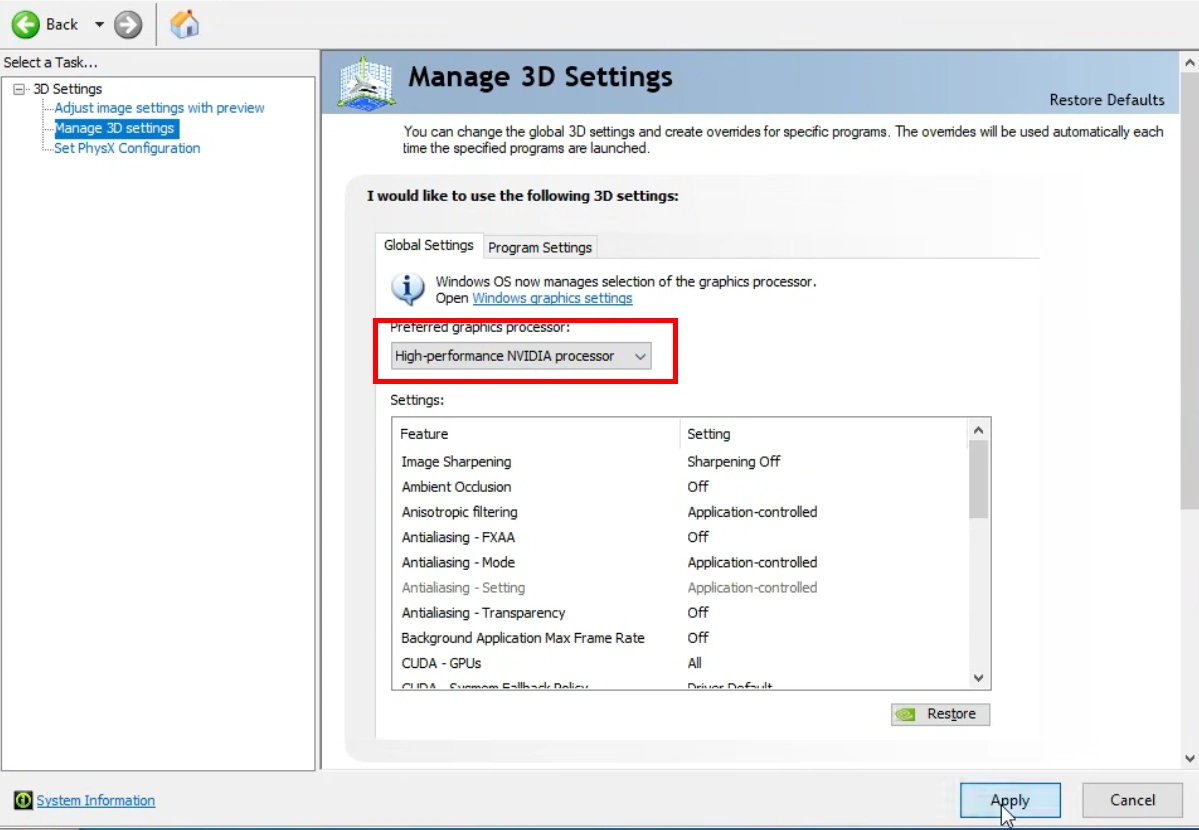
Windows 11 is the better choice. It lets you pick the GPU for every game in the system settings, and that works even with a second discrete card. In Windows 10 you choose through the NVIDIA Control Panel, and that only works reliably with integrated graphics.
On Windows 10, try select_default_GPU. This small open-source batch script (GitHub) fixes the most common case of a game running on the wrong GPU. Its first option turns on the default high-performance GPU and per-app GPU settings that Windows 10 has but hides. The second writes the mining card into the registry as the default high-performance DirectX adapter. The third makes OpenGL programs use the NVIDIA driver instead of the integrated graphics; it needs administrator rights and a reboot, and doesn’t work while Microsoft’s OpenCL and OpenGL Compatibility Pack is installed. Owners report that it got Windows to accept the mining card as the high-performance GPU and moved OpenGL apps like FurMark onto it, though a few older games still started on the integrated graphics.
Which Platforms Work
| Platform | Verdict | Notes |
|---|---|---|
| Intel 6th–14th gen with iGPU (LGA1151, 1200, 1700) | best option | current iGPU drivers, DirectX 12 works |
| Intel Haswell (LGA1150) | works | DirectX 12 only with an older Intel driver, see Pitfalls |
| Intel Ivy Bridge (LGA1155) | at your own risk | Windows 11 recommended, the iGPU has no DirectX 12 |
| Intel Sandy Bridge (LGA1155) | not recommended | can be made to work, with serious limitations |
| AMD AM4 with an APU (Ryzen G) | works | some APUs give the graphics slot only x8, which means PCIe 1.1 x8 (~2 GB/s) for the P106-100 |
| X79, X99 and any CPU without iGPU | works with a second card | see “No Integrated Graphics” below |
Your CPU needs AVX. This has nothing to do with the card, but it bites cheap builds all the time. Pentium and Celeron chips up to 10th gen (G4560, G5400, G6400 and the like) and first-gen Core i3/i5/i7 lack AVX, and modern games either refuse to start or spend hours compiling shaders. Core i3/i5/i7 from Sandy Bridge on, every Xeon E3 and the Xeon E5 chips for X79/X99 have it.
P106-100 Driver
The official NVIDIA driver installs on the P106-100, but only enables CUDA: DirectX and OpenGL are locked for this card. The lock is purely in software, and there are two ways around it.
- NVIDIA-patcher by dartraiden (GitHub) is the most transparent option. It changes a few bytes in the official driver files, it’s open source and well documented. The patched files are re-signed by the patcher’s author instead of NVIDIA, so some antivirus programs flag them and anti-cheat systems often refuse to load them (see Pitfalls).
- RainCandy Technology Special Edition (GitHub) is a ready-made installer built on the same patcher plus CYX-patch. It’s easier to install, adds the root certificate by itself and walks you through errors. The catch, which the author openly states: it’s signed with leaked certificates, and anti-cheat systems may not trust it, up to and including an account ban.
Which Version to Install
The right version depends on what drives your monitor. Data from the patcher’s Windows guide as of November 2026:
| Display output through | Driver version |
|---|---|
| Intel or AMD integrated graphics | 582.78 |
| AMD graphics card | 582.78 |
| NVIDIA GTX 900/10 series, GT 1030 | 582.78 |
| NVIDIA GTX 16, RTX and newer | 581.94 |
| NVIDIA Kepler (GT 710/730) | 472.12 |
| Two P106-100 in SLI | 446.14 only |
The 580 branch is the last one to support Pascal, so the P106-100 won’t get any new game optimizations, only fixes within that branch.
Step-by-Step Installation
- Install the driver for your integrated graphics (or the second card) and make sure the picture comes through it.
- Download the official NVIDIA driver of the right version, the matching patched files and DDU.
- Unpack the driver with 7-Zip or the latest WinRAR (older WinRAR versions fail on the newest NVIDIA packages), then replace the original files with the patched ones as the patcher’s Windows guide describes.
- Disconnect from the internet, or Windows Update will slip in its own driver. Remove the old NVIDIA driver with DDU and reboot.
- Run
setup.exefrom the unpacked folder, then reconnect. - Set the P106-100 as the high-performance GPU: in Windows 11 under Settings → System → Display → Graphics, in Windows 10 in the NVIDIA Control Panel → Manage 3D settings.
The monitor stays plugged into the integrated graphics or the second card the whole time, since the P106-100 has nowhere to plug it in.
If the Driver Won’t Install
- The installer doesn’t see the card or crashes. Install through Device Manager instead: Update driver → Browse my computer → point it to the unpacked driver folder.
- Signature error. On Windows 10, temporarily disabling driver signature enforcement sometimes helps.
- Code 43 in Device Manager. Most often the driver and the patch don’t match (a different driver version, or files from another build) or Windows Update has quietly replaced the patched driver with the official one. Remove everything with DDU and reinstall offline, double-checking that the patched files are for exactly your driver version. If the error stays, try another slot or another PC: a Code 43 that follows the card everywhere can mean the card itself is faulty.
- The antivirus deleted files. Patched files trigger false positives now and then. The patcher’s author suggests adding
C:\Windows\System32\DriverStoreto the exclusions. - Don’t use the NVENC-prefixed build. It’s meant for cards with a hardware encoder, and on the P106-100 it crashes apps that use NVENC.
- Code 52 with an older RainCandy build. One of the certificates used in RainCandy builds from 2024 and earlier has been revoked through Windows Update. Install a current build or pick the other signature mode in the installer.
No Integrated Graphics: Second GPU, X79 and X99
The P106-100 works fine on X79 and X99, but Xeon E5 chips have no integrated graphics, so a second card has to send the picture to the monitor. The same goes for Intel F-series CPUs, AM4 Ryzen chips without a G and any Ryzen with an F. Choosing which card renders the game is easiest on Windows 11; on Windows 10, select_default_GPU (see above) or the EnableMsHybrid setting below usually sorts it out.
Which Card to Use for Display
Two NVIDIA cards in one system can only share a single driver version, and it’s set by the oldest of them. That’s the main rule: the display card must not drag the P106-100 down to an old driver.
- AMD (RX 550 or similar) is the most trouble-free option. Drivers from two vendors don’t get in each other’s way, and the P106-100 gets the fresh 582.78.
- GT 1030 or another Pascal/Maxwell card also gets 582.78, but conflicts between two NVIDIA cards do happen.
- GT 710/730 (Kepler) are the most common “spare” cards and the worst choice. They pull the whole system down to driver 472.12 (RainCandy recommends 475.14), and some modern games won’t start on it. Older Fermi cards like the GT 610 aren’t supported by the patcher at all.
- The display card needs DirectX 12 in hardware. Kepler cards like the GTX 650 Ti report DirectX 12 only on paper (feature level 11_0), and with one of them driving the display, DirectX 12 games fail even though the P106-100 supports it.
- Old Radeons need at least driver 16.2.1, which means HD 5000 series or newer. Owners report that with such a card the pair works even on LGA775. Such a card is fine for DirectX 11 games; for DirectX 12 you need GCN (HD 7700 or newer).
- Two NVIDIA cards and Windows won’t let you choose. You can try setting EnableMsHybrid in the registry: 1 on one card and 2 on the other, then reboot. One card should then become the high-performance GPU and the other the power-saving one, but it doesn’t work for everyone (see the discussion in issue #57). Or let select_default_GPU set the high-performance adapter for you.
Which Slot to Use
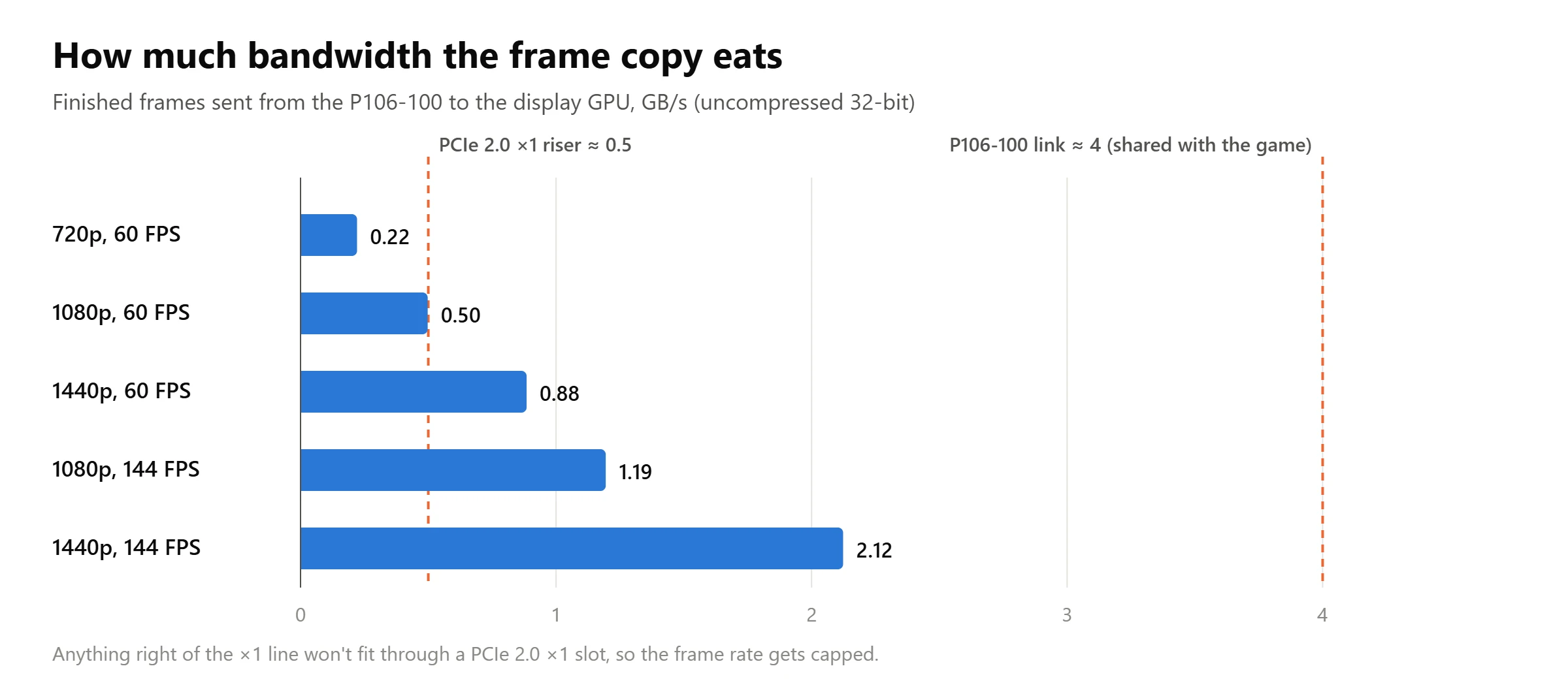
The display card receives finished frames over its own bus, so its slot matters too. A 1080p frame is about 8.3 MB, and at 60 FPS that’s already half a gigabyte per second, which is exactly what a PCIe 2.0 x1 slot can carry.
- A second x16 slot (or at least x4) is ideal. Most X99 boards have one; check our Chinese X99 motherboard table.
- A riser in an x1 slot is often PCIe 2.0 from the chipset, even on newer boards. That’s about 0.5 GB/s, and in practice it caps 1080p at roughly 40 FPS in every game, light or heavy, while at 720p the frame rate goes well past 60. It’s the display card’s slot that limits you here, not the P106-100, so an x1 riser is only fine if you’re happy with that ceiling.
- Give the full slot to the P106-100. If you have to choose, the mining card needs the bandwidth more.
Bottom line for X79 and X99: add the price of a second card to the P106-100. It makes sense if a suitable card is already sitting in a drawer; otherwise compare the total with a used GTX 1060.
PCIe Bus: Check How Many Lanes Your Card Has
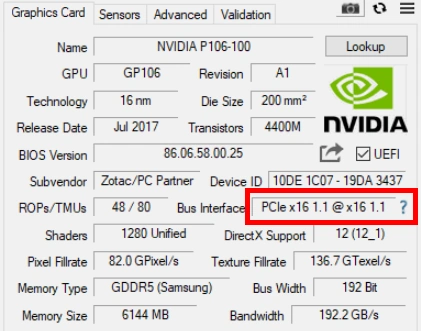
The P106-100 only runs in PCIe 1.1 mode, but on all 16 lanes. That’s about 4 GB/s, the same as PCIe 3.0 x4, and enough for 1080p gaming, which is why the gap to a GTX 1060 is small. The P104 and P102 have only four lanes, and that’s the main reason they’re worse for gaming; here’s what that costs the P104-100 in games.
You can see the mode in GPU-Z, on the Bus Interface line. A healthy card shows “PCIe x16 1.1 @ x16 1.1”. The part before the @ is what the card supports, the part after it is the link you actually have. If it says x4 or x1 after the @, something is off:
- The slot itself is x4 or x1. On budget boards the second long slot is often wired as x4, and on mining boards like the H110 BTC+ every slot but the first is x1. Move the card to the top slot.
- The card has the extra lanes cut. Some P106-100s run at x4 or even x1 in a full slot, and owners find unpopulated capacitor pads on the back of the board next to the connector. On the CMP 40HX, soldering in the missing parts is confirmed to bring the card up to x16 1.1, and the same fix should work on these P106-100s, but we haven’t seen a confirmed result yet.
- Before buying, ask the seller for a GPU-Z screenshot or a photo of the back of the board near the connector.
Experimental: PCIe 2.0 Instead of 1.1
Chinese enthusiasts found a way to raise the link speed of Pascal mining cards from PCIe 1.1 to 2.0 by rewriting the card’s registers. On the P104-100 it doubled the bandwidth (0.78 → 1.55 GB/s, p104-unlock-v3), and there’s now a port for the P106 family, P106-Unlock-Gen2. It’s confirmed working on a P106-090; the P106-100 is supported too, but the author hasn’t published a test on a real P106-100 yet. On a P106-100 running at x16, PCIe 2.0 would mean about 8 GB/s instead of 4, the level of PCIe 3.0 x8. The tool changes the speed, not the number of lanes, so an x4 card stays x4.
There’s a price. To reach the registers, the tool loads the WinRing0 and ThrottleStop kernel drivers, so you have to turn off Windows’ vulnerable driver blocklist, and antivirus and anti-cheat software will flag it. The NVIDIA driver drops the link back to 1.1 whenever CUDA starts, so a scheduled task reapplies the settings after boot and then every minute. Try it on a machine you can recover, and uninstall it (the uninstaller restores the original registers) when you’re done.
Pitfalls
Most problems come not from the card itself but from the “one card renders, another displays” setup and the modified drivers.
- DirectX 12 on Haswell graphics (LGA1150). Starting with driver 15.40.44.5107, Intel disabled DirectX 12 on Haswell because of a security vulnerability. Since the integrated graphics display the frame, DirectX 12 games won’t start on the P106-100 either. The fix is to roll back to 15.40.42.5063 or older. The price is an unpatched vulnerability, and older drivers also have Quick Sync glitches.
- Hardware-accelerated GPU scheduling. On Windows 10 it causes black screens or crashes to desktop in some games, so turn it off (Settings → System → Display → Graphics settings). Windows 11 behaves better here.
- Exclusive fullscreen. Some games hang while loading in this mode, and on Ivy Bridge they often fall back to the integrated graphics altogether. Borderless windowed fixes it. On Haswell and newer this happens much less often.
- G-Sync and refresh rate. The integrated graphics display the frame, so G-Sync doesn’t work, and on older platforms the iGPU output may not go above 60 Hz at all. That depends on the CPU generation and the video outputs on the board, so check them if you have a high-refresh monitor.
- Anti-cheat. The modified drivers are signed with certificates that anti-cheat systems don’t trust, so games with EAC, BattlEye, Vanguard or FACEIT may refuse to use the card, complain about DirectX 11 support, hang or, in the worst case, ban the account. That said, many online games currently run on the RainCandy drivers, which have had experimental Easy Anti-Cheat support since May 29, 2026, but owners still report problems in some EAC games, and this can change at any moment.
- Windows 11 driver policy. Starting with the April 2026 updates, Windows 11 24H2 and newer are phasing out trust in old cross-signed kernel drivers, and that’s the kind of signature modified NVIDIA drivers rely on, so it affects all of them, NVIDIA-patcher included. If the driver was already installed before the change, Windows stays in evaluation mode and keeps loading it. On a fresh install of a recent build it may be blocked. The fix: on a PC with the July 2026 update or newer, run
CiTool.exe --remove-policy "{8F9CB695-5D48-48D6-A329-7202B44607E3}"in Terminal (Admin) and reboot. This lifts the check for every old driver on the system, not just NVIDIA’s. - Not every game works out of the box. Some, like Minecraft or Roblox, keep running on the integrated graphics even when the P106-100 is set as the high-performance GPU, and a few others need extra settings or registry tweaks before they behave. On Windows 10, select_default_GPU (see above) fixes many of these cases. Be ready to tinker with a game or two.
- No 100% guarantee. Some specific hardware combinations misbehave in ways that are hard to predict: on certain motherboards, for example, the integrated graphics stop working once the P106-100 is installed. Nobody can promise this setup will run on every system, so if you can, buy where the card can be returned.
- Driver keeps changing back. If the card suddenly shows up as “P106-100” again and disappears from the Graphics settings, something has installed the official unpatched driver over yours: Windows Update or a driver updater. Turn off driver updates in Windows.
P106-100 Gaming Performance
The quickest way to see the difference is a side-by-side test. Here the P106-100 runs against a real GTX 1060, a P104-100 and an RX 480 on the same Core i3-6100 at 1080p:

On the same platform the P106-100 is usually 7–12% slower than a real GTX 1060 6 GB at 1080p. The chip, clocks and memory are identical, so the whole gap comes from how data and frames travel between the cards:
- A slower bus. PCIe 1.1 x16 gives the card about 4 GB/s against 16 GB/s for a GTX 1060 on PCIe 3.0. Most of the time a game doesn’t need more, but when it streams textures or loads a new area, the card waits for data, and you see it as stutters and lower 1% lows rather than lower average FPS.
- Every frame takes a second trip. The finished frame goes back over the same bus to the integrated graphics or the display card. At 1080p and 60 FPS that’s about 0.5 GB/s, and it grows with frame rate and resolution, leaving less bandwidth for the game itself.
- An extra step to the screen. The picture is shown by another GPU, which adds a little overhead and latency, just like on laptops with switchable graphics.
That’s why the gap is smallest in heavy games running around 60 FPS and grows in esports titles at high frame rates and at 1440p. If you drop the settings to chase 144 FPS, the bus becomes the limit sooner than the chip does.
More Gaming Tests
Around 40 games of 2025–2026 on the RainCandy driver. A Xeon E3-1245 v5 (LGA1151, roughly an i7-6700) displays the picture through its integrated graphics, and the P106-100 runs everything from Cyberpunk 2077 and Battlefield 6 to Kingdom Come: Deliverance 2 and Oblivion Remastered. The author also covers which games with Easy Anti-Cheat started. The video is in Russian; YouTube plays an AI-dubbed English audio track for English-speaking viewers (or pick it under Settings → Audio track), and English subtitles are available.

The Last of Us Part II at 1080p. A single demanding game in detail: optimized settings, then FSR 3 upscaling and frame generation, plus how much of the 6 GB of video memory it uses.

Vendor Differences and Buying Used
Every vendor runs the card at the same reference clocks and memory speed as the GTX 1060, with one 6-pin connector, so performance doesn’t depend on the brand. The differences are in board length, cooling, the VRM heatsink and video outputs.
| Vendor | Length | VRM heatsink | Notes |
|---|---|---|---|
| ASUS (MINING, MINING v2) | 240–242 mm | — | the ASUS MINING-P106-6G has an HDMI port hidden behind the bracket that reportedly works, so the monitor can go straight into the card |
| Colorful | — | no | comes with or without stickers on the fans; both are factory original |
| EVGA | 173 mm | — | a short board that fits small cases |
| Gigabyte (Rev. 1.0–1.3) | 170 mm | yes | fan stop only works until Windows loads; often ships without a bracket |
| Inno3D | 172 mm (Compact), 218 mm (Twin X2) | — | two cooler versions: the short Compact and the longer dual-fan Twin X2 |
| MSI | — | no | fans hit full speed at 45–50 °C, so set a custom curve in MSI Afterburner; there’s an HDMI port under the bracket, but it doesn’t work |
| Palit | 252 mm | — | the longest P106-100; check that it fits your case |
| ZOTAC | 215 mm | — | one of the rare versions with real outputs: DVI, HDMI and DisplayPort on the bracket |
Gainward, GALAX and Manli also made P106-100s, and there’s nothing special to note about them.
The cards without a VRM heatsink still survived years of mining, so a heatsink is more of a safety margin than a reason to pass.
Noisy fans. Many cards keep their fans at 50–70% even at idle, and MSI Afterburner can’t always lower them. The usual fix is flashing a VBIOS from another vendor’s P106-100 with the same 6 GB, but it doesn’t work on every model and carries some risk. There are two safer options. You can plug the card’s fans into a motherboard fan header through an adapter from the small GPU fan connector to a standard 4-pin PWM plug, and then set the curve in the BIOS or in FanControl. Or you can replace the fans themselves: quiet 92 mm case fans zip-tied to the heatsink are a common cheap mod.
What to Check When Buying
- Price. The card only makes sense while it’s clearly cheaper than a used GTX 1060 6 GB.
- Bus mode. Ask for a GPU-Z screenshot: it should say x16 1.1.
- Don’t confuse it with the P106-090 or P106L. The P106L also has 6 GB but is a different, weaker card. In GPU-Z the P106-100’s Device ID is 10DE:1C07.
- Fans and thermal pads are usually worn after years of 24/7 work. Budget for maintenance.
- Memory. Run a VRAM test right after buying. memtest_vulkan is free, needs no installation and runs once the modified driver is in place; a few minutes of testing without errors is a good sign.
- The seller’s BIOS. Mining cards often have modified memory timings or undervolting. If the card is unstable, flash the stock BIOS back. Original BIOS files for most vendors are in the TechPowerUp VBIOS database.
- Power. One 6-pin and up to 120 W, so any decent 400 W PSU will do.
Verdict: Who Should Buy a P106-100
- Buy it if your CPU has integrated graphics (ideally Intel 6th gen or newer), you play at 1080p and want GTX 1060 performance for as little money as possible.
- Think twice on X79 or X99: you’ll need a second card for display. It’s worth it if you already have one.
- Skip it for streaming (no NVENC) and on CPUs without AVX.
- Keep in mind that the 580 branch is the last one for Pascal. This is a card for the games that are already out, not an investment in the future.
Useful Links
- NVIDIA-patcher on GitHub and its Windows guide: the patch and the driver version table.
- RainCandy Technology Special Edition: a ready-made modified driver with an installer.
- select_default_GPU: sets the default GPU for DirectX and OpenGL on Windows 10.
- P106-Unlock-Gen2: the experimental PCIe 2.0 unlock for the P106 family.
- Display Driver Uninstaller (DDU): clean removal of the old driver before installing.
- memtest_vulkan: a quick video memory test.
- Intel: DirectX 12 on 4th gen graphics: why DirectX 12 disappeared on Haswell.

Written by
Senior Hardware Specialist proving you don't need top-tier gear to game. Expert in smart upgrades and budget-friendly PC restoration.